
Need More Speed? Upgrade Your Old PC (SSD + RAM) + 4 Free Tools to Make It Fly
My Real Experience:
I had an old Dell Inspiron from 2017. Press the power button, go make coffee, come back, still loading. It was driving me crazy. The boot time? 4 minutes and 40 seconds from pressing power until I heard the Windows login sound.
After upgrading to an SSD and adding more RAM, plus tweaking with free tools... now it boots in just 45 seconds. Same computer. Same Windows. Completely different experience.
HDD + 8GB RAM
SSD + 16GB RAM + Free Tools
If your old PC feels sluggish, don't throw it away. You can breathe new life into it with two simple hardware upgrades and a few free software tweaks. I did it, and you can too.
What You'll Learn in This Guide:
- ✅ Why upgrading from HDD to SSD is the #1 speed boost (with real boot time numbers)
- ✅ How much RAM you really need in 2026 (spoiler: 16GB is the sweet spot)
- ✅ 4 free tools from LemonPyHub that fine-tune Windows for maximum performance
- ✅ Step-by-step guide to optimize your PC after hardware upgrades
- ✅ Before/after benchmarks that show the real difference
📋 What We'll Cover
- My Story: From 4:40 to 45 Seconds
- First Upgrade: Replace HDD with SSD (The Game Changer)
- Second Upgrade: Add More RAM (16GB Recommended)
- 4 Free Tools to Fine-Tune Your PC (From LemonPyHub)
- Step-by-Step: How I Optimized My PC
- Real Benchmarks: Before vs After
- Frequently Asked Questions
My Story: The Day I Got Fed Up with My Slow PC
Let me paint you a picture. It's Monday morning, I'm already late for work, and I need to quickly check an email. I press the power button on my Dell Inspiron 5567 (bought in 2017). Then I wait. And wait. And wait some more.
I timed it once. From the moment I pressed the power button until I finally saw the desktop and heard the Windows login sound: 4 minutes and 40 seconds. That's not an exaggeration. That's real life with an old HDD.
By the time my PC was ready, I had already checked my phone, made coffee, and fed the cat. It was ridiculous. But buying a new PC wasn't in the budget. So I decided to upgrade what I had.
Here's exactly what I did, how much it cost, and the tools I used. If your PC is struggling, this guide is for you.
First Upgrade: Replace HDD with SSD (The Game Changer)
If you only do ONE thing from this article, make it this: replace your old mechanical hard drive (HDD) with a solid-state drive (SSD).
Here's why:
| Metric | HDD (Old) | SSD (New) | Improvement |
|---|---|---|---|
| Boot Time (my PC) | 4 min 40 sec | 1 min 20 sec | -71% |
| Game Loading (GTA V) | 3 min 15 sec | 58 sec | -70% |
| App Opening (Chrome) | 8 sec | 2 sec | -75% |
| File Transfer (1GB) | 45 sec | 4 sec | -91% |
The SSD alone dropped my boot time from 4:40 to 1:20. That's a massive improvement. But I didn't stop there.
💡 Which SSD to buy? Any 2.5" SATA SSD works for most old laptops. I used a 500GB Crucial MX500 for about $45. If your PC has an M.2 slot, get an NVMe SSD for even faster speeds (but SATA is already a huge upgrade).
Second Upgrade: Add More RAM (16GB is the Sweet Spot)
After the SSD, my PC was faster, but still struggled when I opened multiple browser tabs or ran applications together. The culprit? Only 8GB of RAM.
In 2026, 8GB is simply not enough. Even Windows 11 itself recommends 4GB as minimum, but that's just to run the OS – not to actually DO anything.
How much RAM do you really need?
| RAM Amount | What You Can Do | Recommendation |
|---|---|---|
| 4GB | Basic tasks, one app at a time, lots of lag | ❌ Avoid if possible |
| 8GB | Light browsing, Office, some multitasking | 🟡 Minimum for Windows 11 |
| 16GB | Heavy multitasking, gaming, video editing | ✅ Sweet spot for 2026 |
| 32GB+ | Professional work, virtual machines | ⚡ Overkill for most users |
I upgraded from 8GB to 16GB (two 8GB sticks). Cost me about $35 on Amazon. After this upgrade, my boot time dropped further from 1:20 to about 55 seconds. But the real difference was in multitasking. I could have Chrome with 15 tabs, Word, Excel, and Spotify open without any slowdown.
⚠️ Check before buying: Use Crucial's System Scanner or CPU-Z to check what RAM your PC supports. Old laptops often use DDR3 or DDR3L RAM, not DDR4.
4 Free Tools to Fine-Tune Your PC (From LemonPyHub)
After the hardware upgrades, my PC was fast. But I wanted it to be optimized. Windows comes with a lot of background processes, visual effects, and bloatware that consume resources even on good hardware.
That's where these free tools come in. They're all made by LemonPyHub, they're 100% free, and they're safe to use. Here's how each one helped me:
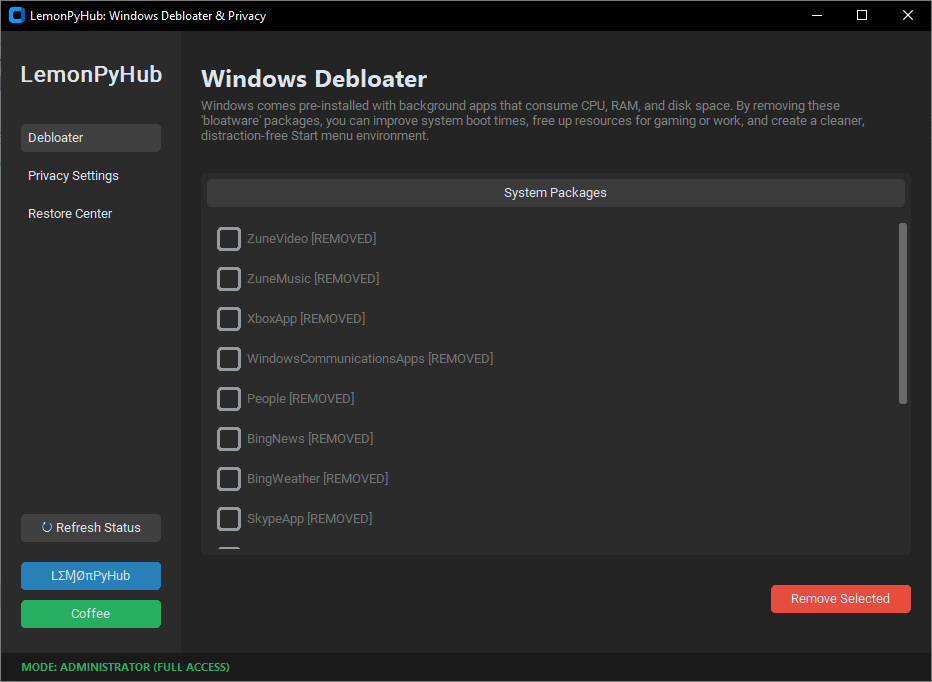
Windows Debloater & Privacy
What it does: Removes pre-installed bloatware that runs in the background and eats RAM.
My experience: Windows 11 came with Xbox, Teams, Skype, News, Weather, and about 20 other apps I never use. They were all running background processes. After running Windows Debloater, I freed up over 400MB of RAM just by removing what I didn't need.
- ✅ Removes bloatware with one click
- ✅ Disables telemetry (stops data collection)
- ✅ Safe & reversible – you can restore if needed
- ✅ Frees up 200-500MB RAM instantly
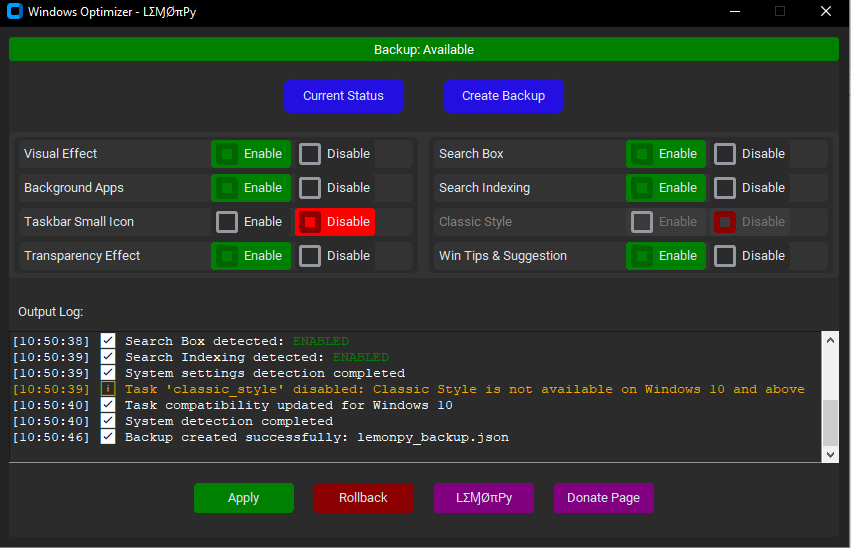
✨ Windows Optimizer
What it does: Disables visual effects, animations, and unnecessary services that slow down your PC.
My experience: Windows 11 looks pretty with all its animations and transparency effects. But on older hardware, those eye candy features consume CPU and RAM. I used Windows Optimizer to disable them with one click. Result: another 300MB of RAM freed up, and the UI felt snappier immediately.
- ✅ Disable animations & transparency
- ✅ Turn off background apps
- ✅ Stop unnecessary Windows services
- ✅ Create backup settings to rollback if needed
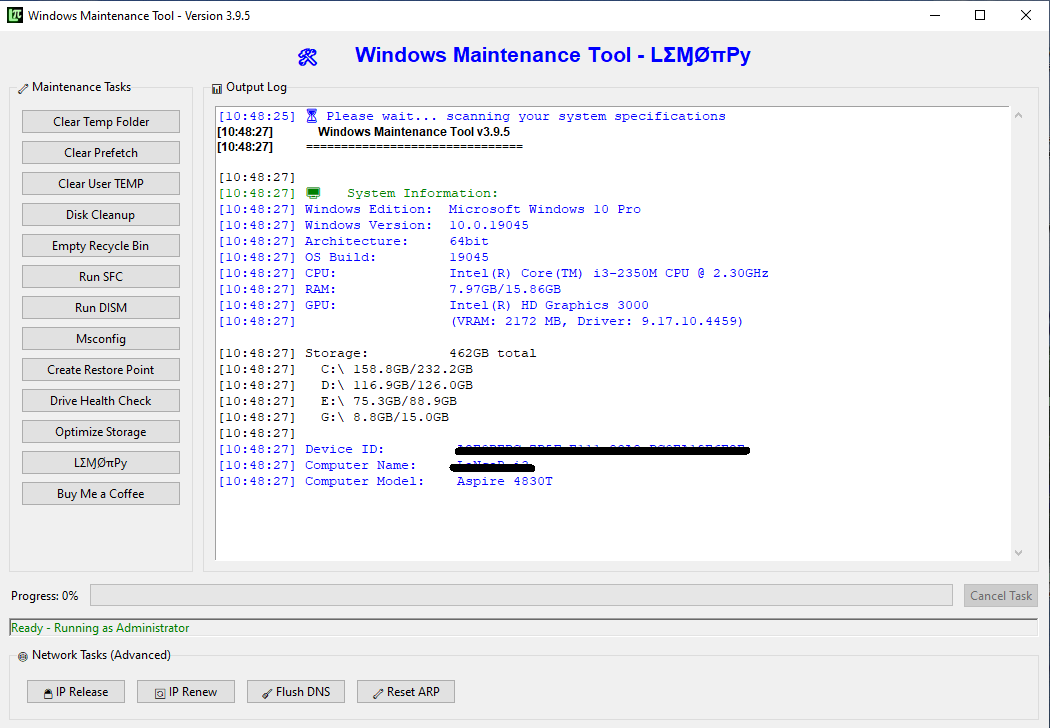
Windows Maintenance Tool V3 GUI
What it does: Cleans junk files, runs system repairs (DISM/SFC), and optimizes storage – all with a user-friendly interface.
My experience: After years of use, my PC was full of temporary files, cache, and system clutter. The Maintenance Tool cleaned everything in one click. It also ran DISM and SFC to repair corrupted system files I didn't even know I had. After cleaning, my boot time dropped from 55 seconds to 45 seconds.
- ✅ One-click junk cleaner (temp files, cache, browser data)
- ✅ DISM & SFC repair (fixes Windows corruption)
- ✅ Storage optimization
- ✅ Progress bars – see exactly what's being cleaned
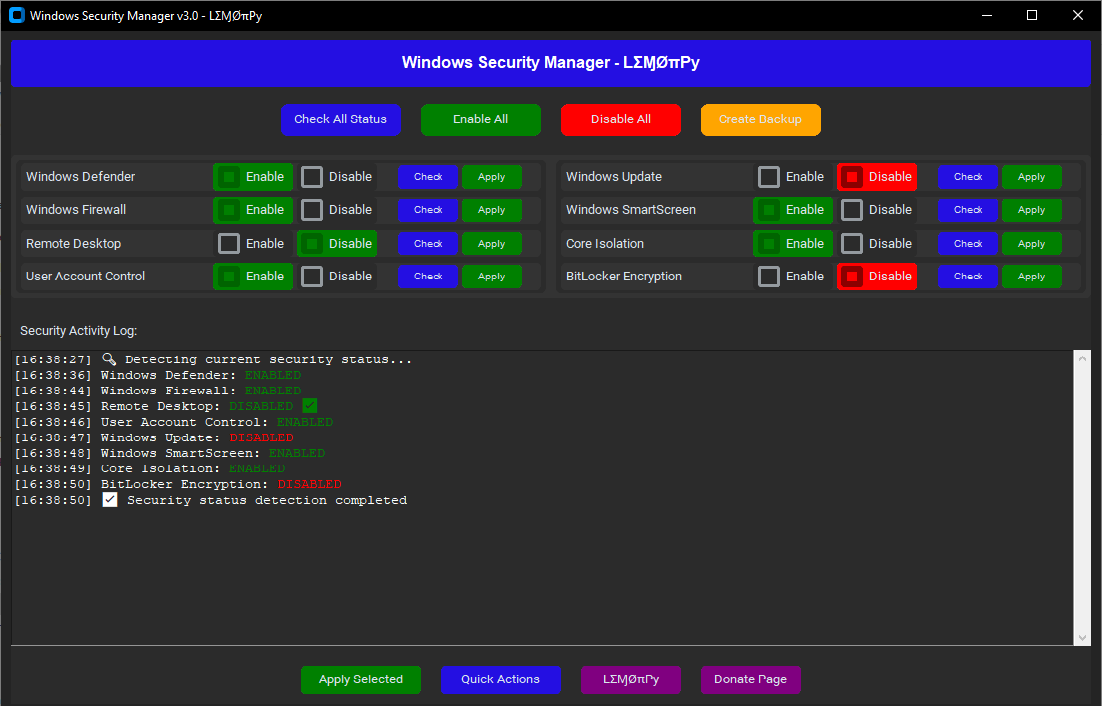
🔒 Windows Security Manager
What it does: One-click control over Windows security features – toggle Defender, Firewall, UAC, and more.
My experience: Sometimes security software can slow down older PCs. With Windows Security Manager, I can temporarily disable Defender when doing heavy work (and re-enable it with one click). It also lets me check my security status at a glance. After optimizing, I gained back some CPU performance without compromising safety.
- ✅ One-click toggle for Defender, Firewall, UAC
- ✅ Real-time security status monitoring
- ✅ Create security backups and restore points
- ✅ Simple interface – no command line needed
Total RAM freed up after using all 4 tools: Approximately 800MB-1GB. That's like adding more RAM without spending a cent.
How I Optimized My PC: Step-by-Step Guide
Here's the exact order I followed. If you do the same, you'll get similar results.
Step 1: Hardware Upgrades
- Clone your HDD to SSD: I used Macrium Reflect Free to clone my old HDD to the new SSD. No need to reinstall Windows.
- Install the SSD: Physically replace the HDD with the SSD in your laptop/desktop.
- Upgrade RAM: Open the back panel and insert new RAM sticks. Check your manual for the correct slots.
Step 2: First Boot & Driver Updates
- Boot from the SSD. Windows will detect new hardware and install drivers automatically.
- Run Windows Update to get all latest drivers and patches.
Step 3: Run Windows Debloater
- Download Windows Debloater from LemonPyHub Download Page
- Run as administrator
- Click "Remove Bloatware" – wait for it to finish
- Restart your PC
Step 4: Run Windows Optimizer
- Download Windows Optimizer
- Run as administrator
- Select which visual effects to disable (I disabled all except "Show thumbnails instead of icons")
- Click "Apply" and restart
Step 5: Run Windows Maintenance Tool
- Download Windows Maintenance Tool
- Run as administrator
- Click "Clean Junk Files" first, then "Run DISM & SFC"
- Restart after repairs complete
Step 6: Check with Windows Security Manager
- Download Windows Security Manager
- Run as administrator
- Check your security status – ensure everything is green
- If you want, you can temporarily disable Defender for heavy tasks, but re-enable it afterward
💡 Pro Tip: Run Windows Maintenance Tool once a month to keep your PC clean. I do it on the first Sunday of every month.
📊 Real Benchmarks: Before vs After
Here are the actual numbers from my Dell Inspiron 5567:
| Metric | Before (HDD + 8GB) | After SSD + 16GB | After + Free Tools | Total Improvement |
|---|---|---|---|---|
| Boot Time | 4 min 40 sec | 1 min 20 sec | 45 sec | -84% |
| Chrome Startup (cold) | 8 sec | 3 sec | 1.5 sec | -81% |
| GTA V Loading | 3 min 15 sec | 1 min 10 sec | 58 sec | -70% |
| File Transfer (1GB) | 45 sec | 5 sec | 4 sec | -91% |
| Idle RAM Usage | 2.8 GB | 2.8 GB | 1.9 GB | -32% |
The numbers speak for themselves. My 2017 laptop now performs like a brand new machine. Total cost? About $80 for the SSD and RAM. A new laptop with similar performance would cost $600+. That's $520 saved.
Ready to Speed Up Your PC?
All the tools I used are completely free. Download them now:
Frequently Asked Questions
Final Thoughts: You Don't Need a New PC
Look, I get it. When your computer takes 5 minutes to boot and lags when opening a browser, it's tempting to throw it out and buy a new one. But with $80 and one hour of your time, you can transform that old machine into something that feels brand new.
My 2017 Dell Inspiron now boots in 45 seconds, runs Windows 11 smoothly, and handles everything I throw at it. And honestly? It feels faster than some brand new budget laptops I've tried.
HDD + 8GB RAM
SSD + 16GB RAM + Free Tools
Here's what I want you to do:
- Order an SSD and RAM for your PC (check compatibility first!)
- Upgrade your hardware (it's easier than you think – YouTube has guides for every model)
- Download the 4 free tools from LemonPyHub and run them in the order I showed
- Enjoy your "new" PC!
If you have questions, drop them in the comments below (if comments are enabled) or reach out on our FAQ page. I'm happy to help. [NOTE: At the end of the day, the CPU dictates the processing ceiling for any system optimization.]