
Windows Debloater EXE
Looking for an alternative to popular debloater scripts?
| Others methods | → PowerShell script, no GUI, complex for beginners |
| Windows10Debloater | → Script-based, no restore feature, command line only |
| Others Apps | → Free but limited restore options |
| ✓ Our Windows Debloater EXE | → GUI interface, Restore Center, Portable, No PowerShell! |
Why settle for scripts when you can have a real GUI tool?
Did you know that a fresh Windows installation comes with dozens of apps you'll never use?
Looking for a Windows Debloater that doesn't require PowerShell? You've found it. Our Windows Debloater & Privacy EXE tool removes bloatware from Windows 10 and Windows 11 with a simple point-and-click interface.
Quick Comparison: PowerShell Scripts vs Our EXE Tool
- PowerShell scripts → Type commands, risk typos, no visual feedback, hard to restore
- Our Windows Debloater EXE → Click buttons, see progress, one-click restore, built-in telemetry blocker
Which is better for beginners? Our GUI tool wins every time.
What is Windows Bloatware and Why Remove It?
Bloatware refers to pre-installed applications on Windows 10 and Windows 11 that you never asked for. These include Xbox apps, Skype, News, Weather, Candy Crush, and many more. They consume disk space, run background processes, and can collect your data.
Xbox Apps
Xbox Console Companion, Xbox Game Bar, Xbox Identity Provider – removes even if you don't game.
Skype & Teams
Pre-installed communication apps many users never open.
News & Weather
Live tiles and background updates that consume resources.
Casual Games
Candy Crush, Solitaire, Minecraft launcher – free up space instantly.
Benefits of Using a Windows Debloater EXE Tool:
- ✅ Free up 500MB - 2GB+ disk space immediately
- ✅ Reduce RAM usage by stopping background bloatware processes
- ✅ Block Windows telemetry to protect your privacy
- ✅ Cleaner Start Menu – only see apps you actually use
- ✅ Faster boot times with fewer startup services
Complete List: 25+ Bloatware Apps You Can Remove
Our Windows Debloater EXE can remove all these pre-installed apps with one click:
| App Name | Why Remove? | Safe? |
|---|---|---|
| Xbox Console Companion | Gaming services you may not need | ✅ Safe |
| Xbox Game Bar | Overlay that runs in background | ✅ Safe |
| Microsoft Solitaire Collection | Pre-installed games | ✅ Safe |
| Skype | Alternative messaging apps exist | ✅ Safe |
| OneNote | Use web version if needed | ✅ Safe |
| Mail & Calendar | Use Outlook or Gmail instead | ✅ Safe |
| Weather | Browser works fine | ✅ Safe |
| News | Browser works fine | ✅ Safe |
| Maps | Use Google Maps | ✅ Safe |
| Groove Music | Use Spotify or other players | ✅ Safe |
| Movies & TV | Use VLC or other players | ✅ Safe |
| Paint 3D | Use classic Paint | ✅ Safe |
| 3D Viewer | Rarely used | ✅ Safe |
| Mixed Reality Portal | VR not needed for most | ✅ Safe |
| Phone Link | Phone integration | ✅ Safe |
| Quick Assist | Remote assistance | ✅ Safe |
| Feedback Hub | Send feedback to Microsoft | ✅ Safe |
| Get Help | Help app | ✅ Safe |
| Tips / Get Started | Windows tips | ✅ Safe |
| People | Contacts app | ✅ Safe |
| Microsoft Office Hub | Office promotion | ✅ Safe |
| Family Safety | Parental controls | ✅ Safe |
| Sports | Sports updates | ✅ Safe |
| Finance | Stock tracking | ✅ Safe |
The Easiest Windows Debloater: GUI Tool with Restore Center
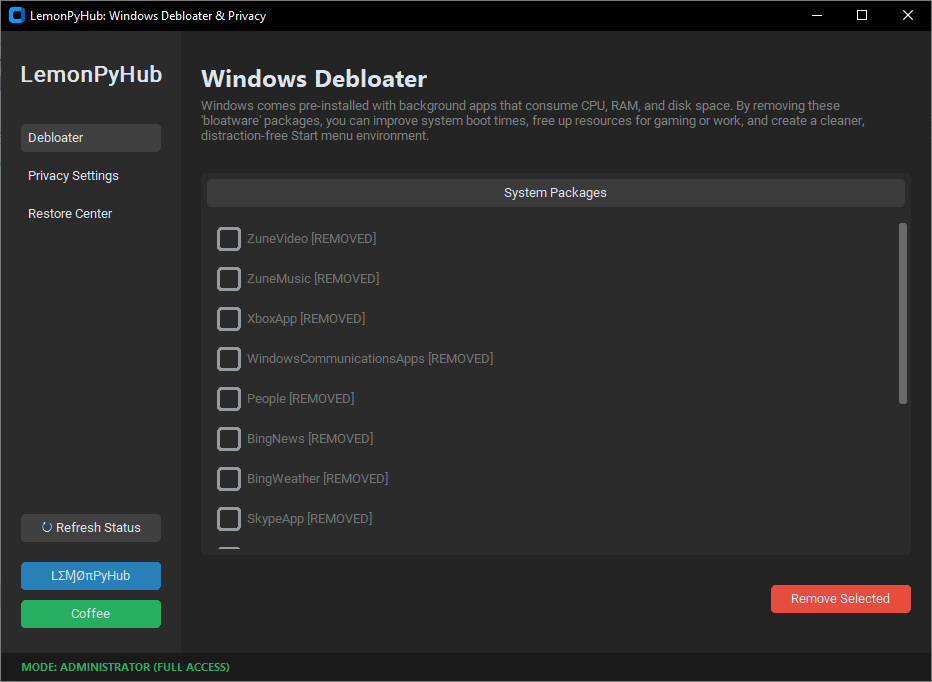
Windows Debloater & Privacy EXE
The best alternative to PowerShell debloater scripts like others. Our tool gives you:
- One-click bloatware removal – Just check boxes and click Remove
- Restore Center – Reinstall any removed app with one click (unique feature!)
- Telemetry blocker – Stop Microsoft from collecting your data
- Real-time progress – See exactly what's being removed
- Portable EXE – No installation required, run from USB drive
- Windows 10 & Windows 11 support – Fully compatible with 2026 updates
Why choose our EXE over PowerShell scripts? Because you can SEE what you're doing. No memorizing commands. No typos that break your system. Just click and clean.
How to Use Windows Debloater EXE (3 Simple Steps)
Step 1: Download
Download the Windows Debloater EXE from the button above. It's portable – no installation needed.
Step 2: Run as Admin
Right-click the EXE and select "Run as administrator" – required to remove system apps.
Step 3: Click & Clean
Check the boxes next to apps you want to remove, then click "Remove Selected". Done!
💡 Pro tip: After removing bloatware, click the "Disable Telemetry" button to stop Microsoft from collecting your data. This is a one-click privacy boost!
Windows Debloater EXE vs PowerShell Scripts: The Truth
| Feature | PowerShell Scripts (tradisional way) | Our EXE GUI Tool |
|---|---|---|
| Technical knowledge required | Advanced | None – just click |
| Risk of typos breaking system | High | Zero |
| Visual feedback during removal | Command line only | Progress bars & status |
| Restore removed apps | Manual reinstall from Store | One-click Restore Center |
| Telemetry blocking | Separate script needed | Built-in button |
| Safe for beginners | ❌ Not recommended | ✅ Designed for everyone |
| Portable (run from USB) | N/A | ✅ Yes, EXE is portable |
⚠️ Warning about PowerShell debloater scripts: Many popular scripts on GitHub require you to modify execution policies and type complex commands. One wrong character can remove critical system components. Our EXE tool is curated for safety – you only see apps that are 100% safe to remove.
Never Lose an App: The Restore Center
This is what makes our Windows Debloater EXE truly unique. Most debloater scripts permanently remove apps with no easy way to get them back.
Restore Center Feature
Our tool keeps a manifest of every app you've removed. To restore any app:
- Open Windows Debloater EXE
- Click the "Restore Center" tab
- Check the boxes next to apps you want back
- Click "Restore Selected" – they're reinstalled from Microsoft Store
That's it. No searching through the Store, no remembering app names. One click restore.
Beyond Bloatware: Privacy Protection Built-In
Our Windows Debloater EXE isn't just about removing apps – it's about protecting your privacy too:
Disable Telemetry
Stop Microsoft from collecting your usage data and keystrokes.
Block Advertising ID
Prevent apps from tracking you for personalized ads.
Disable Cortana
Turn off voice assistant if you don't use it.
Location Tracking
Stop Windows and apps from knowing your location.
Bonus: Complete Windows Optimization Suite
For maximum performance, combine our Windows Debloater EXE with these free tools:
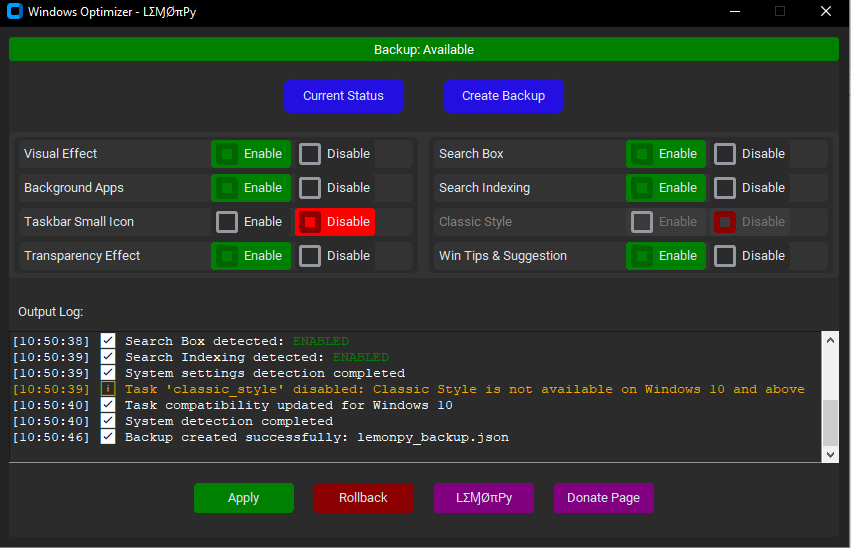
Windows Optimizer EXE
After removing bloatware, use this tool to disable visual effects and background services for even more performance. Another GUI tool – no commands needed.
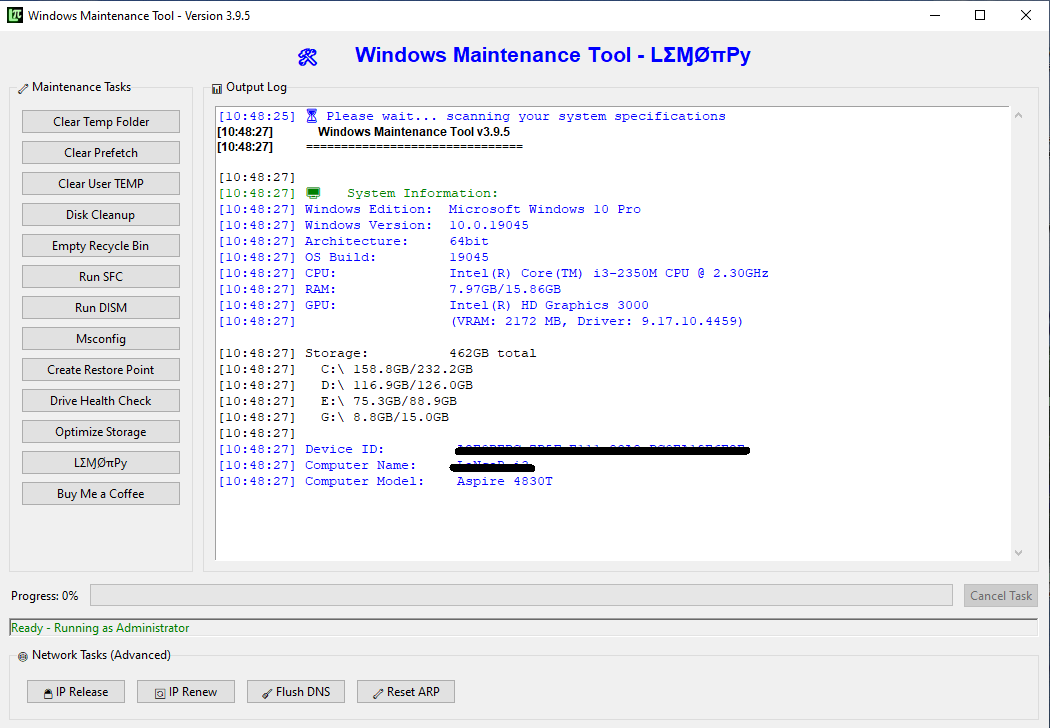
Windows Maintenance Tool V3 GUI
Clean junk files, run DISM & SFC repairs, optimize storage – all in one visual tool.
Frequently Asked Questions About Windows Debloater EXE
Download Windows Debloater EXE – Free & Safe
Ready to debloat Windows in under 60 seconds?
Download our free Windows Debloater EXE. No PowerShell. No commands. Just click and clean.