Check Your PC Specs & Run a Real Performance Test
Why This Matters
Why This Matters: Knowing your exact hardware specs and Windows performance scores helps you pick the right optimization tools. We'll run two safe PowerShell commands — no installation required.
Step 1: Open PowerShell as Administrator
Administrator rights . Follow these steps:
Press Windows Key + S and type PowerShell
Right-click on Windows PowerShell in the search results
Select Run as administrator
Click Yes on the UAC prompt
Step 2: Run Hardware Information Script
Copy the command below and paste it into PowerShell (right-click to paste). It shows your CPU, RAM modules, storage type, and motherboard.
Write-Host ""; Write-Host "========================================" -ForegroundColor Cyan; Write-Host " SYSTEM INFORMATION" -ForegroundColor Cyan; Write-Host "========================================" -ForegroundColor Cyan; Write-Host ""; Write-Host "[OPERATING SYSTEM]" -ForegroundColor Yellow; $os = Get-CimInstance Win32_OperatingSystem; Write-Host " Version : " -NoNewline -ForegroundColor White; Write-Host "$($os.Caption)" -ForegroundColor Green; Write-Host " Build : " -NoNewline -ForegroundColor White; Write-Host "$($os.BuildNumber)" -ForegroundColor Green; Write-Host ""; Write-Host "[RAM]" -ForegroundColor Yellow; $totalRAM = [math]::Round($os.TotalVisibleMemorySize / 1MB, 2); Write-Host " Total RAM : " -NoNewline -ForegroundColor White; Write-Host "$totalRAM GB" -ForegroundColor Green; $ramModules = Get-CimInstance Win32_PhysicalMemory; $i = 1; foreach ($ram in $ramModules) { $ramSize = [math]::Round($ram.Capacity / 1GB, 0); if ($i -eq 1) { Write-Host " Slot 1 : " -NoNewline -ForegroundColor White } else { Write-Host " Slot $i : " -NoNewline -ForegroundColor White }; Write-Host "$ramSize GB ($($ram.Manufacturer))" -ForegroundColor Green; $i++ }; Write-Host ""; Write-Host "[STORAGE]" -ForegroundColor Yellow; $disks = Get-PhysicalDisk; foreach ($disk in $disks) { $size = [math]::Round($disk.Size / 1GB, 2); $mediaType = $disk.MediaType; if ($mediaType -eq "Unspecified") { $mediaType = "HDD/SSD (check Device Manager)" }; Write-Host " $($disk.FriendlyName): " -NoNewline -ForegroundColor White; Write-Host "$size GB ($mediaType)" -ForegroundColor Green }; Write-Host ""; Write-Host "[PROCESSOR]" -ForegroundColor Yellow; $cpu = Get-CimInstance Win32_Processor; Write-Host " Name : " -NoNewline -ForegroundColor White; Write-Host "$($cpu.Name)" -ForegroundColor Green; Write-Host " Cores : " -NoNewline -ForegroundColor White; Write-Host "$($cpu.NumberOfCores) | Logical Processors: $($cpu.NumberOfLogicalProcessors)" -ForegroundColor Green; Write-Host " Max Speed : " -NoNewline -ForegroundColor White; Write-Host "$($cpu.MaxClockSpeed) MHz" -ForegroundColor Green; Write-Host ""; Write-Host "[MOTHERBOARD]" -ForegroundColor Yellow; $mb = Get-CimInstance Win32_BaseBoard; Write-Host " Manufacturer : " -NoNewline -ForegroundColor White; Write-Host "$($mb.Manufacturer)" -ForegroundColor Green; Write-Host " Product : " -NoNewline -ForegroundColor White; Write-Host "$($mb.Product)" -ForegroundColor Green; Write-Host ""; Write-Host "========================================" -ForegroundColor Cyan
📋 Copy Hardware Script
✔️ Press Enter after pasting. You'll see detailed hardware specs. Take a screenshot or note your RAM and storage type.
Step 3: Run Windows Performance Benchmark (WinSAT)
Important — This benchmark takes 1 to 3 minutes to complete. Please be patient and do NOT close the PowerShell window . You will see progress messages, and final scores (CPU, RAM, Graphics, Disk) will appear automatically.
Write-Host ""; Write-Host "========================================" -ForegroundColor Cyan; Write-Host " WINDOWS PERFORMANCE BENCHMARK" -ForegroundColor Cyan; Write-Host "========================================" -ForegroundColor Cyan; Write-Host ""; $isAdmin = ([Security.Principal.WindowsPrincipal] [Security.Principal.WindowsIdentity]::GetCurrent()).IsInRole([Security.Principal.WindowsBuiltInRole]::Administrator); if (-not $isAdmin) { Write-Host "⚠️ Please run PowerShell as Administrator!" -ForegroundColor Red; exit }; $battery = Get-WmiObject -Class Win32_Battery -ErrorAction SilentlyContinue; if ($battery -and $battery.BatteryStatus -eq 1) { Write-Host "⚠️ Warning: Laptop running on battery! Plug in charger for accurate results." -ForegroundColor Yellow }; Write-Host "[1] Running WinSAT Formal Assessment (1-3 minutes)..." -ForegroundColor Yellow; winsat formal -xml C:\Windows\Temp\winsat_result.xml; Write-Host ""; Write-Host "[2] Benchmark complete! Getting scores..." -ForegroundColor Green; $scores = Get-CimInstance Win32_WinSAT; Write-Host "========================================" -ForegroundColor Cyan; Write-Host " BENCHMARK SCORES" -ForegroundColor Cyan; Write-Host "========================================" -ForegroundColor Cyan; Write-Host ""; Write-Host "[PROCESSOR (CPU)]" -ForegroundColor Yellow; $cpuScore = $scores.CPUScore; if ($cpuScore -ge 8) { $color = "Green" } elseif ($cpuScore -ge 5) { $color = "Yellow" } else { $color = "Red" }; Write-Host " Score : " -NoNewline -ForegroundColor White; Write-Host "$cpuScore" -ForegroundColor $color; Write-Host ""; Write-Host "[MEMORY (RAM)]" -ForegroundColor Yellow; $memScore = $scores.MemoryScore; if ($memScore -ge 8) { $color = "Green" } elseif ($memScore -ge 5) { $color = "Yellow" } else { $color = "Red" }; Write-Host " Score : " -NoNewline -ForegroundColor White; Write-Host "$memScore" -ForegroundColor $color; Write-Host ""; Write-Host "[GRAPHICS (Desktop)]" -ForegroundColor Yellow; $graphicsScore = $scores.GraphicsScore; if ($graphicsScore -ge 8) { $color = "Green" } elseif ($graphicsScore -ge 5) { $color = "Yellow" } else { $color = "Red" }; Write-Host " Score : " -NoNewline -ForegroundColor White; Write-Host "$graphicsScore" -ForegroundColor $color; Write-Host ""; Write-Host "[GAMING GRAPHICS (3D)]" -ForegroundColor Yellow; $d3dScore = $scores.D3DScore; if ($d3dScore -ge 8) { $color = "Green" } elseif ($d3dScore -ge 5) { $color = "Yellow" } else { $color = "Red" }; Write-Host " Score : " -NoNewline -ForegroundColor White; Write-Host "$d3dScore" -ForegroundColor $color; Write-Host ""; Write-Host "[DISK (Storage)]" -ForegroundColor Yellow; $diskScore = $scores.DiskScore; if ($diskScore -ge 8) { $color = "Green" } elseif ($diskScore -ge 5) { $color = "Yellow" } else { $color = "Red" }; Write-Host " Score : " -NoNewline -ForegroundColor White; Write-Host "$diskScore" -ForegroundColor $color; Write-Host ""; Write-Host "========================================" -ForegroundColor Cyan; $baseScore = $scores.WinSPRLevel; Write-Host "[BASE SCORE]" -ForegroundColor Magenta; Write-Host " Overall : " -NoNewline -ForegroundColor White; Write-Host "$baseScore" -ForegroundColor $(if ($baseScore -ge 8) { "Green" } elseif ($baseScore -ge 5) { "Yellow" } else { "Red" }); Write-Host " (Lowest subscore determines base score)" -ForegroundColor White; Write-Host ""; Write-Host "[INTERPRETATION]" -ForegroundColor Yellow; Write-Host " 1.0 - 3.9 : Basic - Light tasks only" -ForegroundColor Red; Write-Host " 4.0 - 5.9 : Moderate - Office & multimedia" -ForegroundColor Yellow; Write-Host " 6.0 - 7.9 : Good - Light gaming & creative" -ForegroundColor Green; Write-Host " 8.0 - 9.9 : Excellent - High performance" -ForegroundColor Green
📋 Copy Benchmark Script
⚠️ Run this command using PowerShell with administrative privileges (Run as administrator).
⏳ Wait for the assessment to finish (1-3 minutes). Do not interrupt. At the end, you'll see your scores for CPU, RAM, Graphics, and Disk.
Step 4: Understand Your Scores & Get Personalized Tools
Based on your benchmark results, download the free tools that address your weakest areas:
If Your Score Is Recommended Tool What It Does
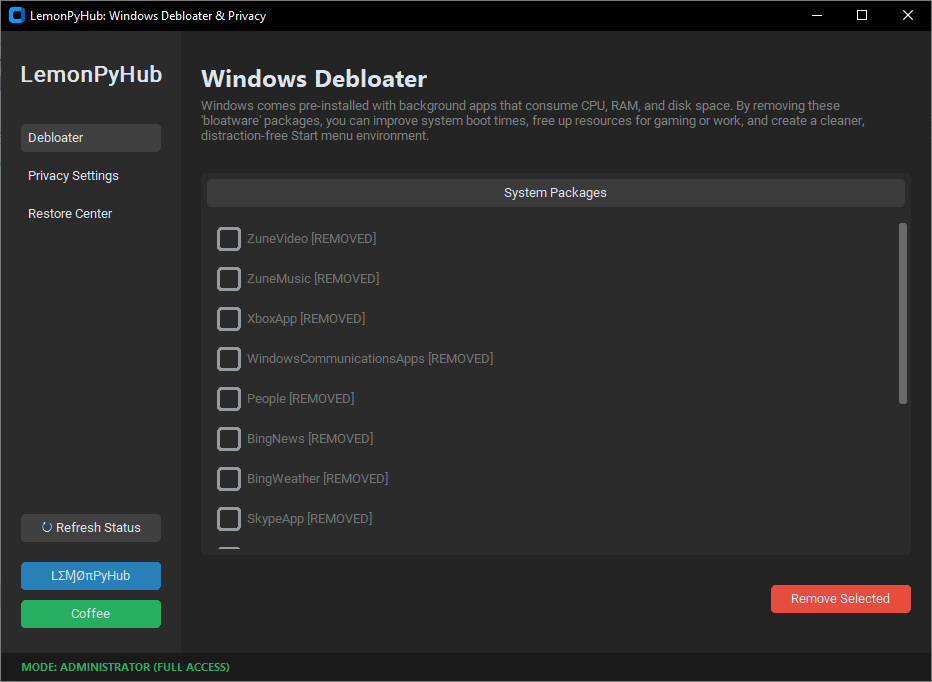
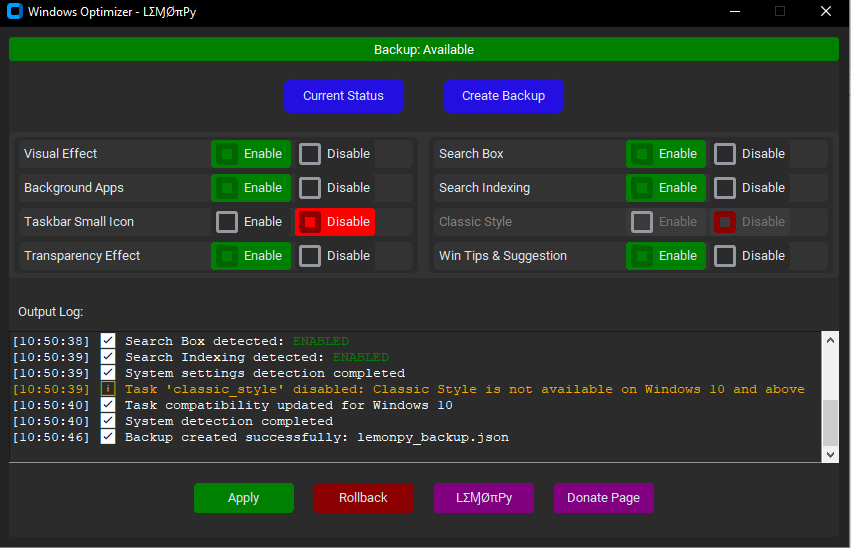
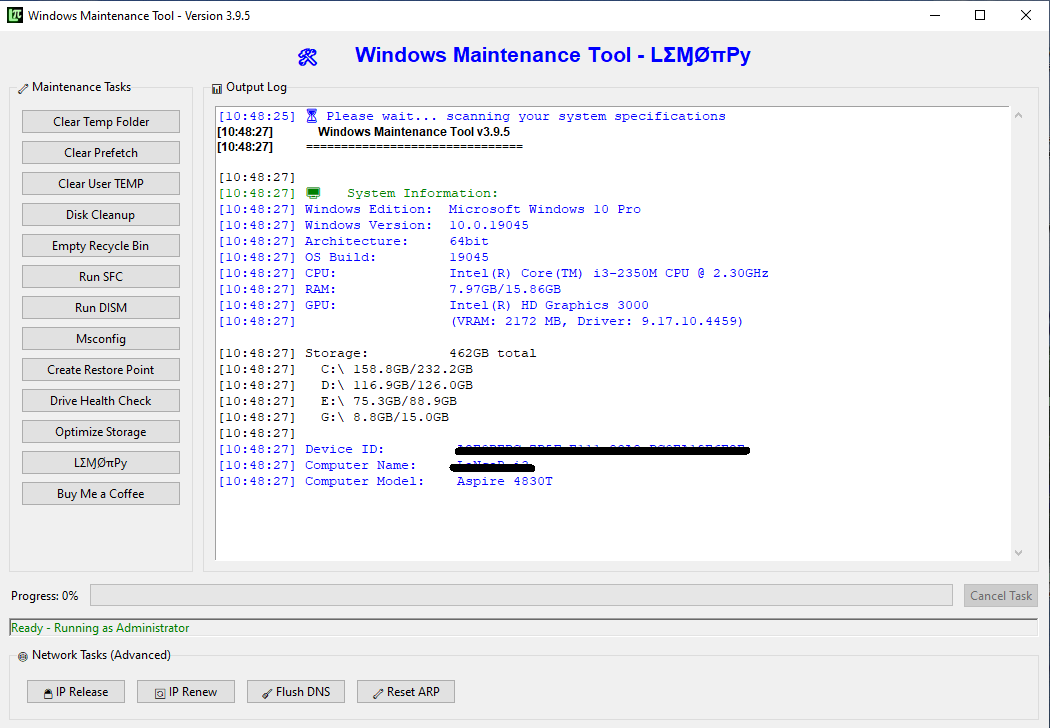
CPU Score < 6.0 Windows Optimizer Disables animations, background services, startup programs RAM Score < 5.9 or ≤8GB RAM Windows Debloater Removes bloatware, stops background apps, frees 400MB-1GB RAM Disk Score < 6.0 or HDD detected Windows Maintenance Tool Cleans junk, runs TRIM/defrag, fixes system files Overall Base Score < 5.0 All Three Tools Combine all tools for maximum performance boost
💡 Pro Tip: After downloading, run Windows Debloater first, then Windows Optimizer, then Maintenance Tool. Restart after each tool for best results.
Ready to Speed Up Your PC?
All tools are 100% free, lightweight, and safe for Windows 10 & 11.
❓ Frequently Asked Questions
Q: The script shows "execution policy" error?
A: Run this command first: Set-ExecutionPolicy -Scope Process -ExecutionPolicy Bypass then paste the script again.
Q: Benchmark takes too long. Is something wrong?
A: No! WinSAT runs multiple tests (CPU encryption, video encoding, disk streaming). 1-3 minutes is normal. Be patient and let it finish.
Q: Can I run these on Windows 11?
A: Yes! Both scripts and all tools work perfectly on Windows 10 and Windows 11.
Q: Are these tools really free?
A: 100% free. No trials, no ads, no premium versions. They're developed to help the community.
📚 You Might Also Like: