
Windows Debloater: Remove Bloatware Safely (2026)
Did you know that a fresh Windows installation comes with dozens of apps you'll never use?
From Xbox and Skype to Candy Crush and News – these pre-installed applications (called "bloatware") consume disk space, run background processes, and can even collect your data without you knowing.
In this guide, we'll show you exactly how to remove bloatware safely – both manually and with our free Windows Debloater & Privacy tool. Plus, we'll explain how to restore apps if you change your mind.
Quick Answer:
- ✅ What is bloatware? Pre-installed apps you never asked for
- ✅ Why remove it? Free up RAM, CPU, and disk space; improve privacy
- ✅ Our tool – Windows Debloater & Privacy does it safely with one click
- ✅ Restore center – Reinstall any app if needed
What is Bloatware and Why Should You Remove It?
Bloatware refers to software that comes pre-installed on your computer – usually by Microsoft or PC manufacturers – that you never actually asked for. On Windows 10 and 11, this includes:
Xbox Apps
Xbox Console Companion, Xbox Game Bar, Xbox Identity Provider – runs even if you don't game.
Skype
Pre-installed but most people use other messaging apps now.
News & Weather
Live tiles and background updates consume resources.
Candy Crush / Solitaire
Games you never installed but came with Windows.
Why Remove Bloatware?
- ✅ Free up disk space – Some bloatware packages can be hundreds of MB
- ✅ Reduce RAM usage – Many bloatware apps run background processes
- ✅ Improve privacy – Telemetry and data collection are often bundled
- ✅ Cleaner Start Menu – No more clutter from apps you never use
- ✅ Faster boot times – Fewer background services at startup
Good news: Removing bloatware is completely safe – and reversible! With the right tools, you can always reinstall apps if you need them later.
Common Windows Bloatware You Can Safely Remove
Here's a list of apps that are generally safe to remove. Our tool includes all of these:
| App Name | Description | Safe to Remove? |
|---|---|---|
| Xbox App | Xbox Console Companion | ✅ Yes |
| Xbox Game Bar | Gaming overlay | ✅ Yes |
| Xbox Identity Provider | Xbox login services | ✅ Yes |
| Microsoft Solitaire Collection | Solitaire games | ✅ Yes |
| Microsoft Office Hub | Office promotion app | ✅ Yes |
| OneNote | Note-taking app | ✅ Yes |
| Mail & Calendar | Windows mail client | ✅ Yes |
| People | Contacts app | ✅ Yes |
| Skype | Video calling | ✅ Yes |
| Maps | Offline maps | ✅ Yes |
| Weather | Weather updates | ✅ Yes |
| News | News feed | ✅ Yes |
| Sports | Sports updates | ✅ Yes |
| Finance | Stock tracking | ✅ Yes |
| Movies & TV | Video player | ✅ Yes |
| Groove Music | Music player | ✅ Yes |
| Get Help | Help app | ✅ Yes |
| Get Started | Tips app | ✅ Yes |
| Feedback Hub | Send feedback | ✅ Yes |
| Mixed Reality Portal | VR portal | ✅ Yes |
| 3D Viewer | 3D model viewer | ✅ Yes |
| Paint 3D | 3D painting | ✅ Yes |
| Phone Link | Phone integration | ✅ Yes |
| Quick Assist | Remote assistance | ✅ Yes |
| Family Safety | Parental controls | ✅ Yes |
Method 1: Remove Bloatware Manually
Option A: Uninstall via Settings (Easiest)
- Open Settings (Windows Key + I)
- Go to Apps → Installed apps (or Apps & features)
- Scroll through the list, find the app you want to remove
- Click the three dots (or the app) and select Uninstall
Limitation: Some pre-installed apps don't appear here, or won't uninstall completely.
Option B: Remove via PowerShell (For Stubborn Apps)
Some apps are protected and need PowerShell to remove:
- Right-click Start and select Terminal (Admin) or Windows PowerShell (Admin)
- To see all installed apps:
Get-AppxPackage | Select Name, PackageFullName - To remove an app (example for Xbox):
Get-AppxPackage *xbox* | Remove-AppxPackage
This method works but requires you to know the exact package names – and it's easy to make mistakes.
Method 2: The Easy Way – Windows Debloater & Privacy
Why type PowerShell commands and hunt through lists when you can do it all with one click?
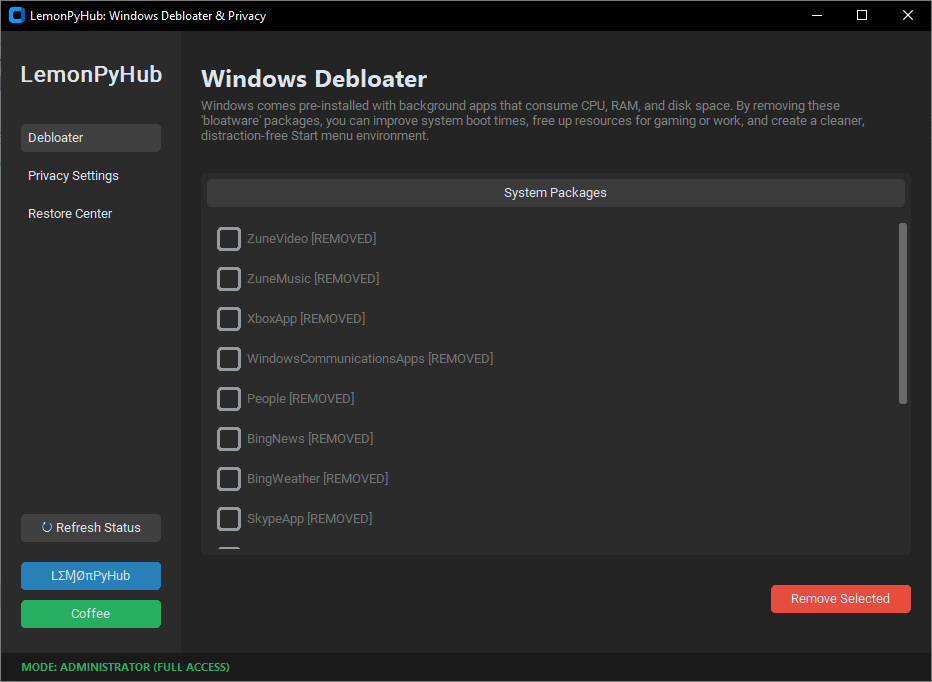
🧹 Windows Debloater & Privacy
Our flagship debloating tool makes removing bloatware completely safe and simple:
- ✅ One-click bloatware removal – Select apps to remove from a clean list
- ✅ Telemetry disabling – Block Microsoft data collection
- ✅ Restore Center – Reinstall any removed app with one click
- ✅ Resource optimization – Free up RAM and CPU immediately
- ✅ Privacy enhancements – Disable Cortana, advertising ID, and more
- ✅ 100% reversible – Nothing is permanently deleted
Key Features in Detail:
- Bloatware Removal: Effortlessly uninstall pre-installed system apps that consume unnecessary disk space.
- Telemetry Disabling: Enhance your privacy by blocking automated data collection and background tracking by Microsoft.
- Restore Center: Easily reinstall previously removed applications using the original Windows Store manifest.
- Resource Optimization: Boost speed and performance by freeing up vital RAM and CPU resources for gaming and work.
Perfect for users who want a cleaner, faster, and more private Windows experience without any technical hassle.
How to Use Windows Debloater
- Download and extract the tool (portable version, no installation needed).
- Run as administrator (right-click, select "Run as administrator").
- The tool will scan your system and show a list of removable apps.
- Check the boxes next to apps you want to remove.
- Click "Remove Selected" – watch the progress bar as they're uninstalled.
- That's it! Restart your PC for best results.
Pro tip: The tool also has a "Telemetry Disabling" button that blocks Microsoft's data collection with one click.
Manual Methods vs Windows Debloater
| Aspect | Manual (Settings/PowerShell) | Windows Debloater Tool |
|---|---|---|
| Time required | 10-20 minutes | 30 seconds |
| Technical knowledge | Need to know app names and PowerShell | No knowledge required |
| Risk of removing wrong apps | High (easy to mistype) | Very low – curated list |
| Restore capability | Difficult to reinstall | One-click Restore Center |
| Telemetry disabling | Separate process | Built-in |
Bonus: Combine with Other Tools for Maximum Performance
For the best results, use Windows Debloater alongside our other free tools:
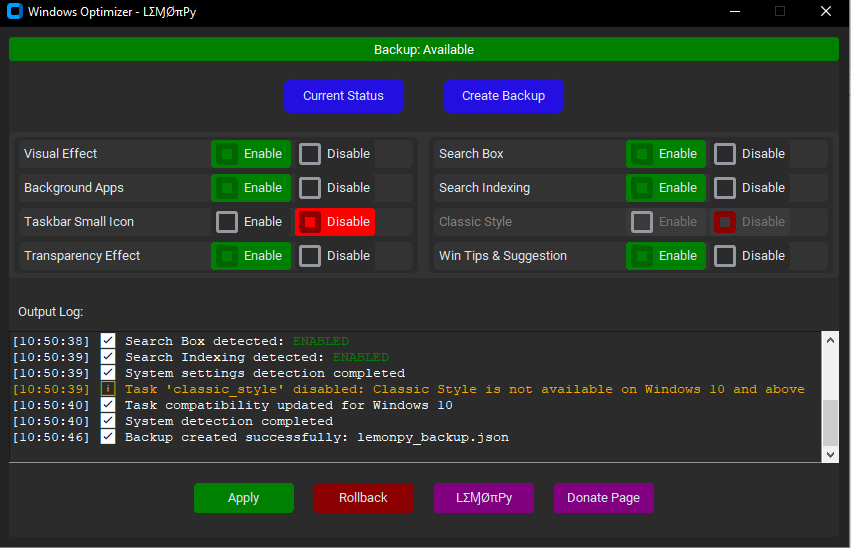
✨ Windows Optimizer
After removing bloatware, use Windows Optimizer to disable visual effects and background services for even more performance gain.
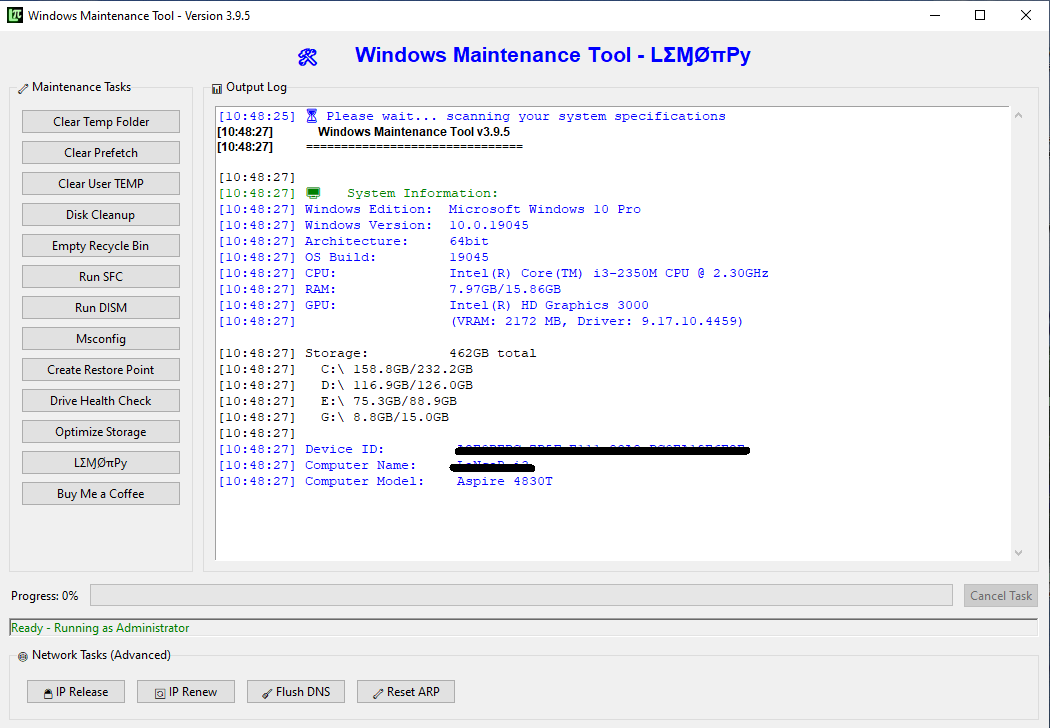
⚡ Windows Maintenance Tool V3 GUI
Clean junk files, run DISM & SFC, and optimize storage – all in one tool.
What If I Change My Mind? Using the Restore Center
One of the best features of Windows Debloater is the Restore Center. If you accidentally remove an app or decide you need it later, you can reinstall it with one click.
How to Restore Removed Apps:
- Open Windows Debloater.
- Click on the "Restore Center" tab.
- You'll see a list of all apps you've previously removed.
- Check the boxes next to apps you want back.
- Click "Restore Selected" – they'll be reinstalled from the Microsoft Store.
Note: The Restore Center keeps a manifest of removed apps, so you can always get them back exactly as they were.
Beyond Bloatware: Privacy Features
Windows Debloater isn't just about removing apps – it also helps protect your privacy:
- ✅ Disable telemetry – Stop Microsoft from collecting your data
- ✅ Turn off advertising ID – Prevent apps from tracking you for ads
- ✅ Disable Cortana – If you don't use voice assistant
- ✅ Block keylogger – Disable text suggestions and inking feedback
- ✅ Disable location tracking – Stop apps from knowing your location
Frequently Asked Questions
Download All Free Tools
| Tool | Purpose | Download |
|---|---|---|
| Windows Debloater & Privacy | Remove bloatware, disable telemetry, restore apps | Download → |
| Windows Optimizer | Disable visual effects & background services | Download → |
| Windows Maintenance Tool V3 GUI | Clean junk files, DISM/SFC, optimize storage | Download → |
Get a Cleaner, Faster, More Private Windows Today
Bloatware doesn't have to slow down your PC or invade your privacy. With Windows Debloater & Privacy, you can:
- ✅ Remove dozens of unwanted apps in seconds
- ✅ Free up disk space, RAM, and CPU
- ✅ Block telemetry and protect your privacy
- ✅ Restore any app if you change your mind
- ✅ All with a safe, reversible, one-click tool
Thousands of users have already cleaned up their systems. Join them today!