
Windows 11 vs Windows 10: Which is Better for 4GB RAM? (2026)
If you have an older PC with only 4GB RAM, you might be wondering: should I upgrade to Windows 11 or stick with Windows 10?
This is one of the most common questions we hear from users with low-end hardware. In this guide, we'll give you an honest, fact-based comparison – no marketing hype – and show you how to optimize either OS for better performance using our free tools.
Quick Answer:
- ✅ Windows 10 is lighter and runs better on 4GB RAM out of the box. It's the safer choice for smooth everyday use.
- ⚠️ Windows 11 CAN be installed on 4GB RAM (it's the minimum requirement), but expect higher RAM usage and potential sluggishness without optimization.
- ✅ Our free tools can help both versions run better – but for Windows 11, 6GB-8GB RAM is highly recommended for a good experience.
Windows 11 vs Windows 10: Side by Side Comparison
| Aspect | Windows 10 | Windows 11 |
|---|---|---|
| Minimum RAM (Official) | 1GB (32-bit) / 2GB (64-bit) | 4GB (minimum) |
| Idle RAM usage (fresh install) | ~1.2 - 1.5GB | ~2.0 - 2.5GB |
| RAM left for apps (on 4GB total) | ~2.5GB | ~1.5GB |
| UI smoothness on 4GB | Good for basic tasks | Can be laggy, especially with multiple apps |
| Bloatware out of the box | Moderate | More (Teams, Widgets, etc.) |
| Security updates | Until Oct 2025 | ✅ Ongoing |
The Honest Verdict
For 4GB RAM, Windows 10 is the better choice if you want a usable experience without constant tweaking. It leaves you with about 2.5GB of free RAM for your applications – enough for light browsing, Office, and basic tasks.
Windows 11 CAN run on 4GB RAM (it meets the minimum requirement), but here's the reality:
- ⚠️ After boot, you'll only have ~1.5GB of RAM left for your apps.
- ⚠️ Opening a browser with a few tabs can quickly eat up that remaining RAM, causing lag and freezing.
- ⚠️ Many users report that Windows 11 on 4GB feels sluggish and hangs frequently .
- ✅ For a smooth Windows 11 experience, 6GB - 8GB RAM is highly recommended .
Bottom line: If you have 4GB RAM and want a hassle-free experience, stick with Windows 10. If you really want Windows 11, be prepared to upgrade your RAM or use heavy optimization – and even then, manage your expectations.
How to Optimize Windows for 4GB RAM (4 Essential Steps)
Whether you choose Windows 10 or 11, these four optimization steps will help you get the most out of your 4GB system. Our free tools make it easy!
Step 1: Disable Visual Effects with Windows Optimizer
The biggest performance drain on any Windows system is visual effects – animations, shadows, transparency. Disabling these can free up significant RAM and CPU resources.
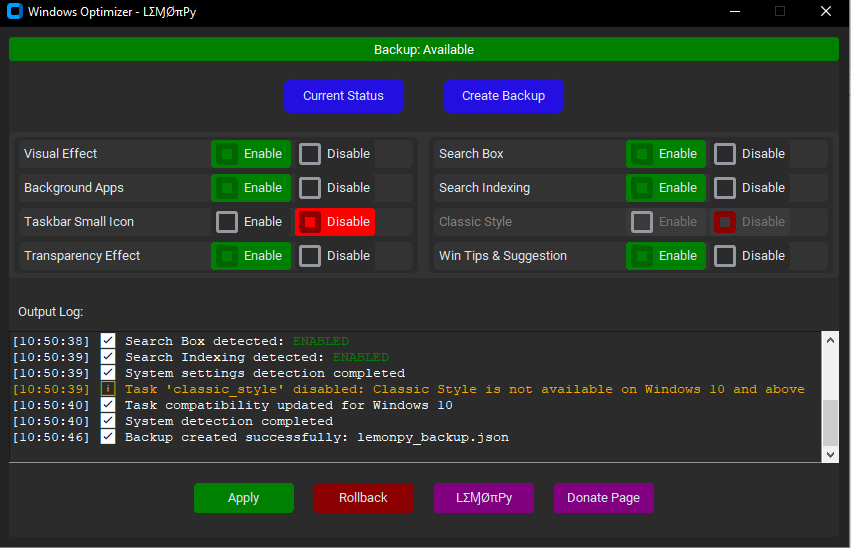
✨ Windows Optimizer
Our Windows Optimizer tool disables all unnecessary visual effects, telemetry, and background services with one click. Perfect for maximizing available RAM on 4GB systems.
- ✅ Disable animations & transparency
- ✅ Turn off telemetry & data collection
- ✅ Stop unnecessary background services
- ✅ One-click optimization – no technical skills needed
Step 2: Clean Junk Files Regularly
Over time, temporary files, cache, and logs pile up and slow down your system. Cleaning these regularly is essential for 4GB RAM systems to prevent unnecessary disk and memory usage.
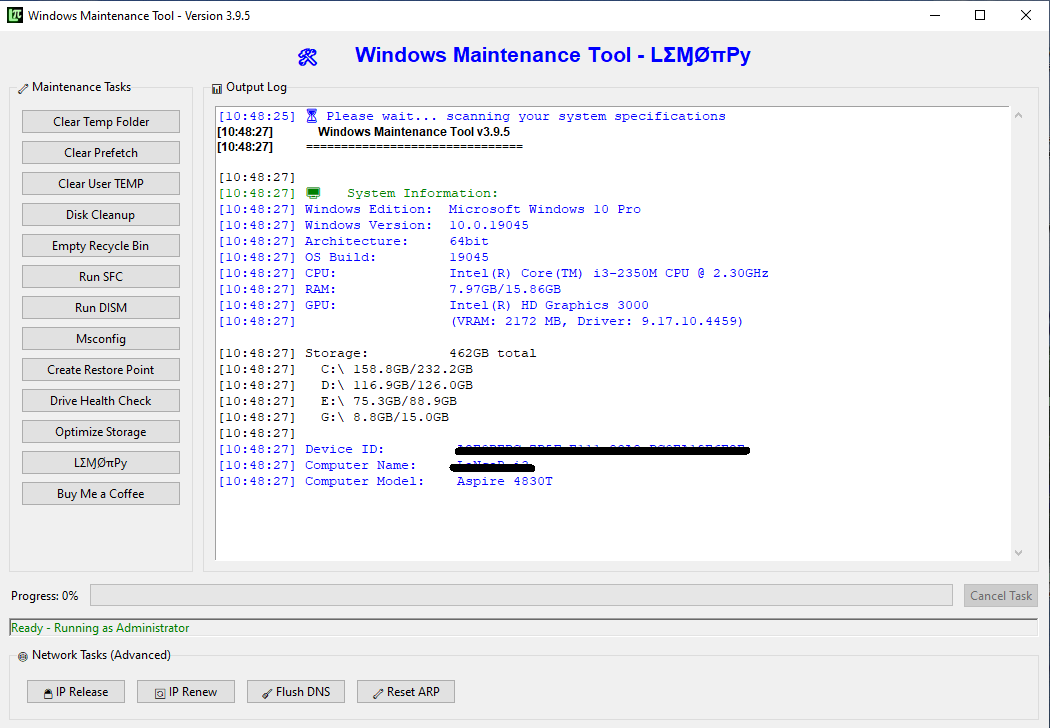
⚡ Windows Maintenance Tool V3 GUI
Automate junk file cleanup with our flagship tool. It safely removes temporary files and runs system repairs to keep your system lean.
- ✅ Cleans Temp, %temp%, prefetch
- ✅ Runs DISM & SFC to repair system files
- ✅ Optimizes storage automatically
- ✅ Progress bars & visual feedback
Step 3: Remove Bloatware with Windows Debloater
Windows comes with many pre-installed apps (Xbox, Skype, Teams, etc.) that consume RAM even if you never use them. Removing these can free up 200-500MB of RAM – crucial for 4GB systems!
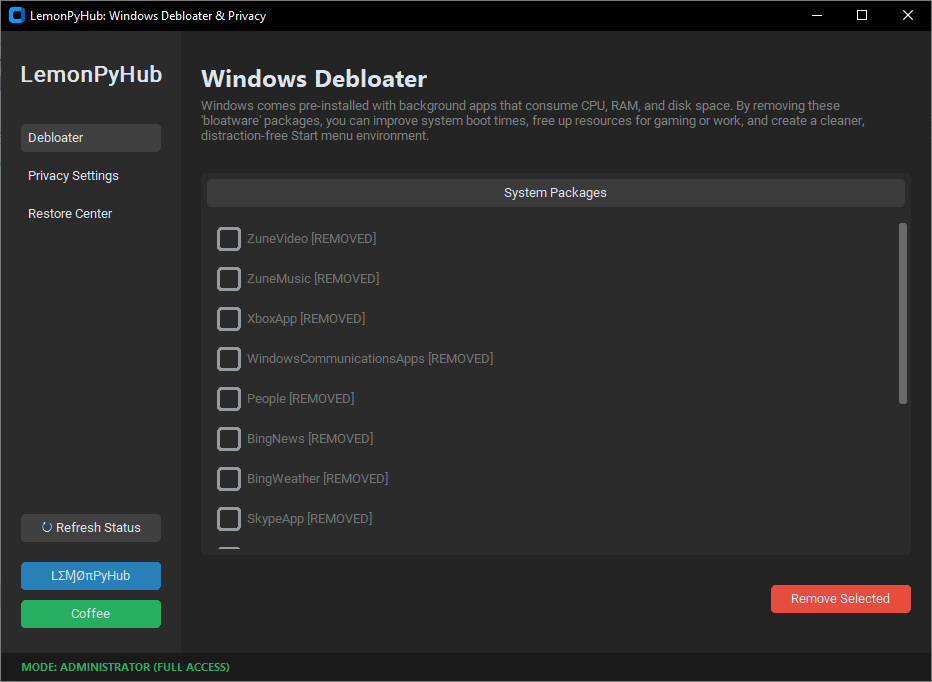
🧹 Windows Debloater & Privacy
One-click removal of bloatware and telemetry. Includes a restore center in case you need an app back.
- ✅ Remove Xbox, Teams, Skype, etc.
- ✅ Disable telemetry & data collection
- ✅ Free up 200-500MB of RAM
- ✅ Restore center – safe removal
Step 4: Disable Startup Programs (MSConfig)
Many programs set themselves to launch at startup, consuming precious RAM before you even open them. Here's how to disable them:
- Press Windows Key + R, type
msconfig, press Enter. - Go to the Services tab, check "Hide all Microsoft services".
- Disable any third-party services you don't need at startup.
- Go to the Startup tab and click "Open Task Manager".
- Disable unnecessary startup programs.
- Click OK and restart.
Pro tip: After disabling startup items, you'll notice faster boot times and more available RAM immediately.
Frequently Asked Questions
Download All Tools
| Tool | Purpose | Download |
|---|---|---|
| Windows Optimizer | Disable visual effects & services | Download → |
| Maintenance Tool V3 GUI | Clean junk files, DISM/SFC | Download → |
| Windows Debloater | Remove bloatware & telemetry | Download → |
Final Recommendation
If you have a 4GB RAM PC:
- ✅ Choose Windows 10 for the smoothest experience without tweaking. It's reliable, familiar, and leaves you more RAM for your apps.
- ⚠️ Choose Windows 11 only if you absolutely need the latest features, are willing to optimize heavily, and understand that performance will be limited. Consider upgrading to 8GB RAM if possible.
Either way, our free tools will help you get the best possible performance from your hardware. Download them today and breathe new life into your PC!