
Windows Maintenance Tool V3 GUI: Free Download (2026)
Looking for Windows Maintenance Tool V3? You've found it – but not the script version.
If you've been searching for Windows Maintenance Tool V3, you probably know about the popular script that went viral on Reddit. But did you know there's an even BETTER way?
Introducing Windows Maintenance Tool V3 GUI – the same powerful cleaning capabilities, but in a user-friendly application. No more typing commands in PowerShell or CMD. Just click and go!
In this guide, you'll learn:
- Why the Windows Maintenance Tool V3 GUI beats command-line scripts
- How to clean junk files automatically with one click
- How to remove bloatware and improve privacy
- Where to download all tools for free
🚀 Let's dive in!
Windows Maintenance Tool V3: Classic Style vs GUI – Which is Better?
You might have heard about the Windows Maintenance Tool V3 script that helps users clean their systems. But many users find scripts confusing and risky. Here's how our GUI version compares:
| Feature | Classic Style (Manual) | Our GUI Application |
|---|---|---|
| Easy to use | ❌ Need to type commands | ✅ Just click buttons |
| Safe for beginners | ❌ Risky if wrong command | ✅ Built-in safety checks |
| Visual feedback | ❌ Text only | ✅ Progress bars & logs |
| Backup & Restore | ❌ Manual only | ✅ Automatic backup |
| Run as admin | ❌ Must run manually | ✅ Auto-elevate |
The verdict: While classic scripts are popular, our Windows Maintenance Tool V3 GUI offers the same powerful features in a much easier package. Perfect for users who want results without technical headaches.
Why Is Your Computer Slow Even with 8GB RAM?
Before we fix the problem, let's understand why it happens. Many users ask: "Is 8GB RAM enough for Windows 11?"
The short answer is yes. Windows 10 and 11 can run smoothly on 8GB RAM for everyday tasks. However, over time, four things slow down your PC:
Visual Effects
Windows uses RAM and CPU for fancy transitions, shadows, and transparency.
Junk Files
Temporary files, cache, and logs pile up in folders like %temp% and Temp.
Background Processes
Many apps run automatically when you start your computer.
Bloatware
Pre-installed apps consume disk space and run in the background.
The good news? All of these are fixable with our free tools.
Method 1: Optimize Windows Visual Effects
One of the fastest ways to speed up your PC is to disable unnecessary visual effects.
How to Disable Visual Effects Manually
- Press Windows Key + R, type
sysdm.cpl, and press Enter. - Go to the Advanced tab and click Settings under Performance.
- Select "Adjust for best performance" to disable all effects.
- Click Apply and OK.
This simple tweak can instantly make your PC feel snappier.
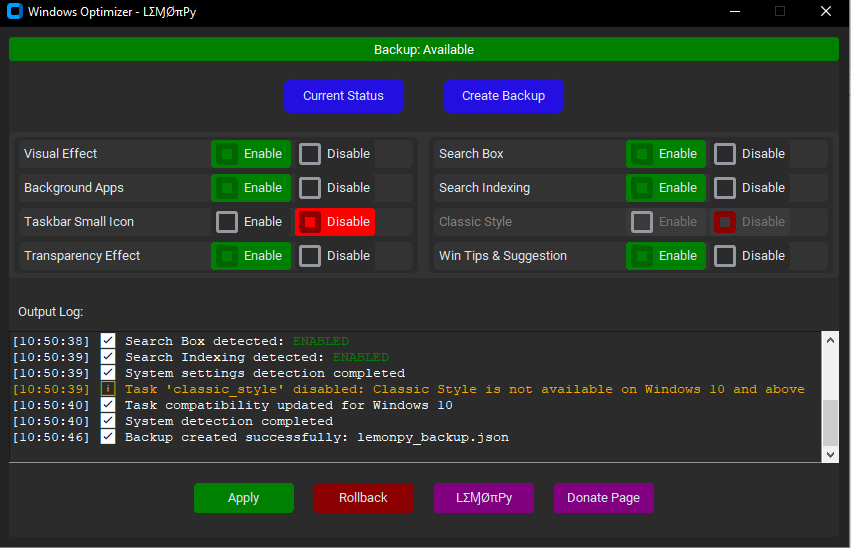
✨ The Easy Way: Windows Optimizer
If you want to do this with one click, download Windows Optimizer from lemonpyhub.github.io/download. This tool automatically disables all visual effects, telemetry, and unnecessary background services.
Pro tip: Many users searching for "Windows 10 low spec optimizer free download" find this tool incredibly useful.
Method 2: Clean Junk Files with Windows Maintenance Tool V3 GUI
The second major reason your computer slows down is junk file accumulation. This is where our flagship tool shines.
What is Windows Maintenance Tool V3 GUI?
Windows Maintenance Tool V3 GUI is a free application that automates system cleaning tasks. Unlike the popular script version that requires typing commands, our GUI version lets you do everything with simple clicks.
Files You Should Clean Regularly:
- Temp folder
C:\Users\YourName\AppData\Local\Temp - %temp% folder (Run >
%temp%) - Prefetch files (Run >
prefetch) - Recycle Bin
- Browser cache (Chrome, Edge, Firefox)
How to Clean Manually (The Hard Way)
- Press Windows Key + R, type
%temp%, and press Enter. - Select all files (Ctrl + A) and delete them (skip files in use).
- Repeat for
Tempandprefetchfolders.
Doing this manually every week is tedious. That's why thousands of users search for "Windows Maintenance Tool V3" and discover our GUI version as a better alternative.
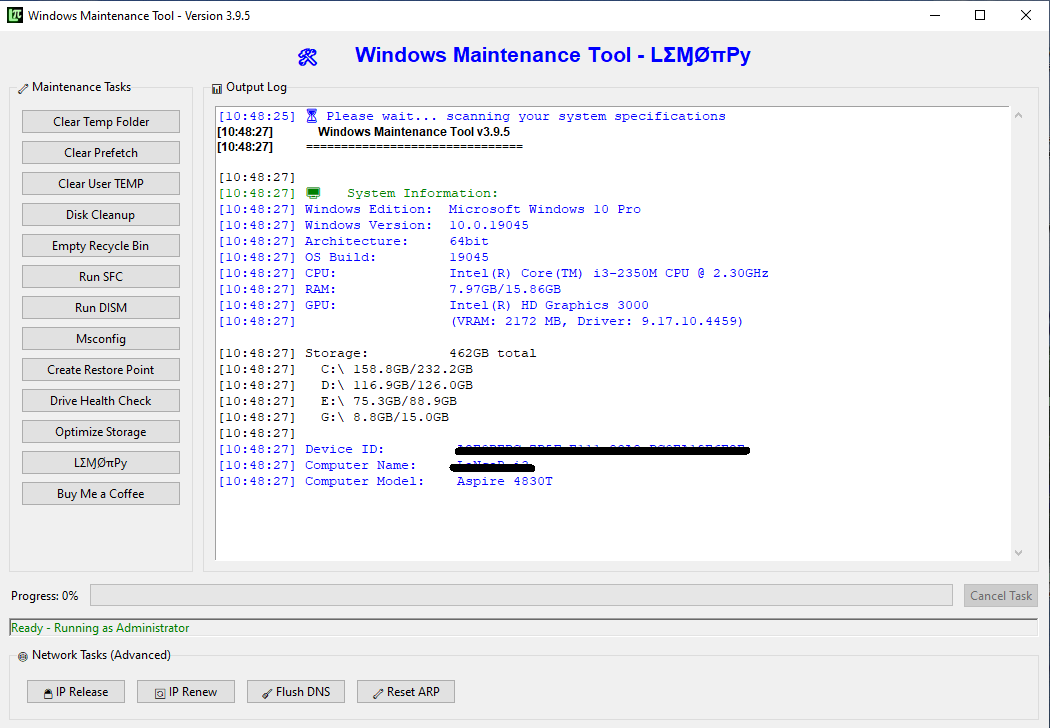
⚡ Windows Maintenance Tool V3 GUI – The Smart Choice
Instead of struggling with scripts, use our Windows Maintenance Tool V3 GUI. It's the same powerful cleaning engine, but with a user-friendly interface:
- ✅ One-click cleaning – cleans
%temp%,Temp, and cache folders - ✅ DISM and SFC – repair system files automatically
- ✅ Storage optimization – removes junk safely
- ✅ Progress bars – see exactly what's being cleaned
- ✅ Backup & Restore – undo if needed
Why choose our GUI version? Because you deserve a tool that's powerful AND easy to use. No command line knowledge required!
Many users who search for "Windows Maintenance Tool V3" actually prefer our GUI version once they discover it.
Method 3: Remove Bloatware with Windows Debloater & Privacy
The third reason your 8GB RAM PC might be slow is bloatware – pre-installed apps that consume resources.
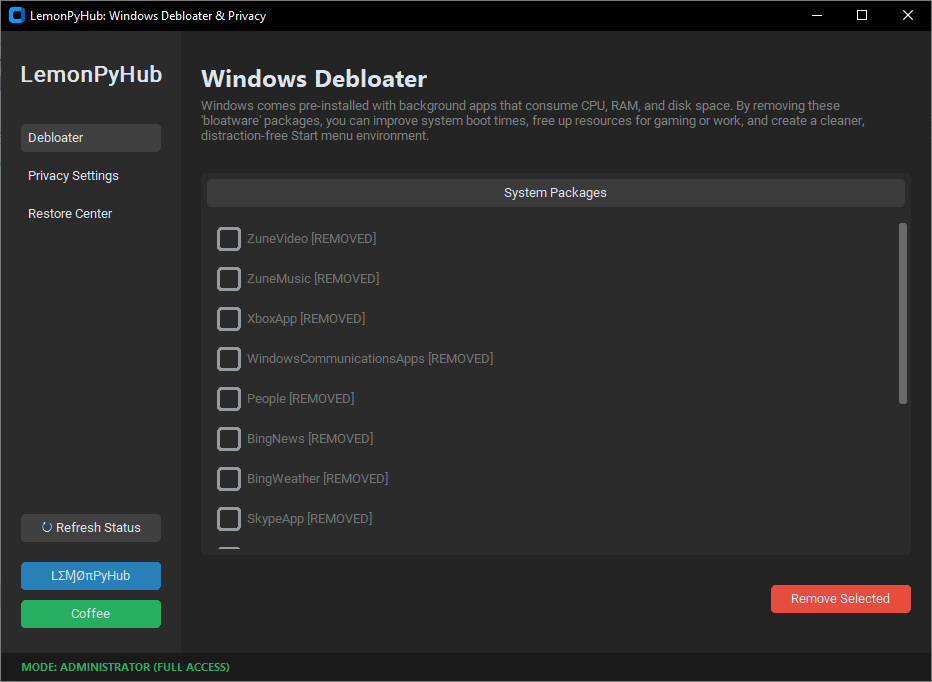
🧹 Windows Debloater & Privacy
LemonPyHub Windows Debloater removes unwanted apps and stops data collection with one click.
Key Features:
- Bloatware Removal: Uninstall pre-installed system apps
- Telemetry Disabling: Block Microsoft data collection
- Restore Center: Reinstall if needed
- Resource Optimization: Free up RAM and CPU
Pro tip: Combine with Windows Maintenance Tool V3 GUI for maximum performance!
Bonus Tips for 8GB RAM Systems
1. Disable Startup Programs
Press Ctrl + Shift + Esc to open Task Manager. Go to Startup tab and disable unnecessary programs.
2. Set Power Plan to High Performance
Go to Control Panel > Power Options and select "High performance."
3. Keep Windows Updated
Always install the latest Windows updates for performance improvements.
Frequently Asked Questions (FAQ)
Download All Free Tools
| Tool | Best For | Download |
|---|---|---|
| Windows Maintenance Tool V3 GUI | Cleaning junk files, DISM/SFC, system optimization | Download → |
| Windows Optimizer | Disabling visual effects & background services | Download → |
| Windows Debloater & Privacy | Removing bloatware & protecting privacy | Download → |
Get Windows Maintenance Tool V3 GUI Today
Whether you searched for "Windows Maintenance Tool V3" and found us, or you're looking for an easier way to optimize your PC – our GUI version is the answer.
100% Free • No Registration • No Ads
If you found this guide helpful, please share it with friends who complain about slow computers!