
Step-by-Step Guide to Run DISM and SFC Commands (2026)
Is your Windows acting up? Random crashes, blue screens, or strange errors?
Before you give up and reinstall Windows, there are two powerful commands that can fix most system issues: DISM (Deployment Imaging Service and Management) and SFC (System File Checker).
In this guide, we'll show you exactly how to run these commands – both the manual way and the easy way using our Windows Maintenance Tool V3 GUI.
Quick Answer:
- ✅ SFC /scannow – Scans and repairs protected system files
- ✅ DISM /Online /Cleanup-Image /RestoreHealth – Repairs the Windows image itself
- ✅ Always run DISM first, then SFC for best results
- ✅ Our tool does both with one click!
What Are DISM and SFC?
Think of Windows as a house:
SFC (System File Checker)
Like a handyman that fixes broken furniture. It scans all protected system files and replaces corrupted ones with a cached copy.
DISM (Deployment Imaging Service)
Like a foundation repair specialist. If the source files that SFC uses are corrupted, DISM fixes them first.
Rule of thumb: Always run DISM first, then SFC. DISM fixes the source, SFC fixes the files.
When Should You Run DISM and SFC?
Run these commands if you experience:
- ⚠️ Frequent blue screen errors (BSOD)
- ⚠️ System crashes or freezes
- ⚠️ Missing DLL files or application errors
- ⚠️ Windows Update failures
- ⚠️ Slow system performance (when other optimizations don't help)
- ⚠️ Corrupted registry or system files
Important: Both commands are safe to run. They only modify system files, not your personal data. However, it's always good to back up important files first.
Method 1: Run DISM and SFC Manually (Command Line)
Step 1: Open Command Prompt as Administrator
- Press Windows Key + X and select "Terminal (Admin)" or "Command Prompt (Admin)".
- If prompted by UAC, click Yes.
Step 2: Run DISM First
Type or paste this command and press Enter:
DISM /Online /Cleanup-Image /RestoreHealth
This command will:
- ✅ Check the Windows image for corruption
- ✅ Download healthy files from Windows Update (if needed)
- ✅ Fix any issues it finds
This process can take 10-30 minutes. Be patient and don't close the window. You'll see a progress bar.
Step 3: Run SFC After DISM Completes
Once DISM is done, run SFC:
sfc /scannow
SFC will:
- ✅ Scan all protected system files
- ✅ Replace corrupted files with good copies
- ✅ Show you a summary when complete
Step 4: Restart Your Computer
After both commands complete, restart your PC to apply the changes.
Manual Way vs The Easy Way
| Aspect | Manual (Command Line) | Windows Maintenance Tool GUI |
|---|---|---|
| Time required | 10-30 minutes (just for commands) | One click, automated |
| Technical knowledge | Need to know commands and order | No knowledge required |
| Risk of typos | One wrong character = error | No typos possible |
| Progress visibility | Text only | Visual progress bars |
| Run DISM + SFC in sequence | Manual order | Automatic (DISM first, then SFC) |
Method 2: The Easy Way – Windows Maintenance Tool V3 GUI
Why type complex commands when you can do it with one click? Our Windows Maintenance Tool V3 GUI has dedicated buttons for both DISM and SFC – and it even runs them in the correct order automatically.
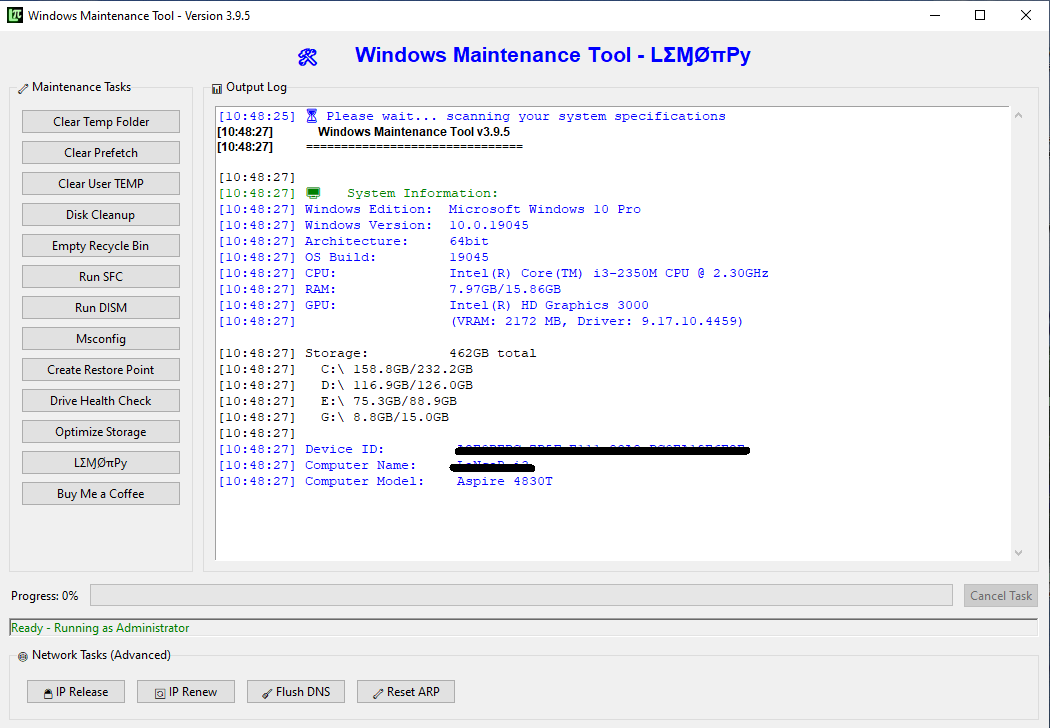
⚡ Windows Maintenance Tool V3 GUI
Why type commands when you can click buttons?
- ✅ One-click DISM – Runs /CheckHealth, /ScanHealth, or /RestoreHealth
- ✅ One-click SFC – Runs sfc /scannow with visual progress
- ✅ Automatic order – The tool knows to run DISM first, then SFC
- ✅ Real-time progress bars – See exactly what's happening
- ✅ Color-coded logs – Easy to read results
- ✅ No command line knowledge required – Perfect for beginners
Plus, it includes junk file cleaning, storage optimization, and more – all in one free tool.
How to Run DISM and SFC with Our Tool
- Download and extract the tool (portable version available).
- Run as administrator (right-click, select "Run as administrator").
- In the main interface, go to the "System Health" tab.
- Click "DISM Restore" to run DISM /RestoreHealth.
- When it completes, click "SFC Scan" to run sfc /scannow.
- Watch the progress bars and logs – that's it!
Pro tip: The tool also has "DISM Check" which runs a faster check without repairing. Use this first if you just want to see if there's corruption.
Understanding DISM and SFC Results
DISM Results:
- "The operation completed successfully" – Great! DISM fixed everything.
- "The component store corruption was repaired" – Issues were found and fixed.
- "Error: 0x800f081f" – DISM couldn't find source files. This can happen if Windows Update is disabled. Try using an installation media as source.
SFC Results:
- "Windows Resource Protection did not find any integrity violations" – All system files are healthy.
- "Windows Resource Protection found corrupt files and successfully repaired them" – Issues were found and fixed.
- "Windows Resource Protection found corrupt files but was unable to fix some of them" – Some files couldn't be repaired. Run DISM again, then SFC.
Advanced: If DISM Can't Download Files
Sometimes DISM can't download healthy files from Windows Update (if your internet is down or Windows Update is broken). In this case, you can use a Windows installation USB as the source.
Step 1: Create Windows Installation Media
Download the Windows 11 Media Creation Tool and create a USB installer.
Step 2: Mount or Insert the USB
Note the drive letter (e.g., E:).
Step 3: Run DISM with Source Parameter
DISM /Online /Cleanup-Image /RestoreHealth /Source:E:\sources\install.wim /LimitAccess
(Replace E: with your USB drive letter)
This tells DISM to use the USB as the source instead of Windows Update.
Frequently Asked Questions
Download the Easy Way
| Tool | Purpose | Download |
|---|---|---|
| Windows Maintenance Tool V3 GUI | One-click DISM & SFC + junk cleanup | Download → |
| Windows Optimizer | Disable visual effects & services | Download → |
| Windows Debloater | Remove bloatware & protect privacy | Download → |
Stop Typing Commands – Start Clicking Buttons
DISM and SFC are powerful tools that can fix many Windows problems. But why type long commands and remember the correct order when you can do it with one click?
- ✅ Windows Maintenance Tool V3 GUI makes it foolproof
- ✅ No technical knowledge required
- ✅ Visual progress bars so you know what's happening
- ✅ Free and open-source
Download it now and fix your Windows the easy way!