
How to Disable Startup Programs for Faster Boot Times (2026)
Does your computer take forever to boot? You're not alone.
One of the biggest culprits of slow boot times is the number of programs that launch automatically when Windows starts. Every program you add to your system may decide to add itself to the startup list – and over time, this can add up to a 2-3 minute boot delay.
In this guide, we'll show you exactly how to disable startup programs to dramatically speed up your boot times. We'll cover manual methods and the easy way using free tools like Windows Optimizer and Windows Maintenance Tool.
Quick Answer:
- ✅ Task Manager – The quickest manual method
- ✅ MSConfig – For more advanced control
- ✅ Windows Optimizer – One-click startup management
- ✅ Maintenance Tool – Also includes startup optimization
Why Startup Programs Slow Down Your PC
Every program that launches at startup:
- ⚠️ Uses CPU time – Each program competes for processor time during boot
- ⚠️ Consumes RAM – Programs stay in memory even if you don't use them
- ⚠️ Slows disk I/O – Multiple programs reading from disk simultaneously creates a bottleneck
- ⚠️ Delays desktop appearance – Windows waits for startup programs before showing the desktop
The result? Instead of being ready in 30 seconds, your PC might take 2-3 minutes before you can actually do anything.
Good news: Disabling unnecessary startup programs is one of the easiest and most effective ways to speed up your PC – and it's completely free!
Common Startup Programs You Can Safely Disable
Here are examples of programs that often run at startup but don't need to:
Spotify
Launches quickly when you need it – no need to run at boot.
Adobe Updater
Checks for updates – let it run manually instead.
Skype
Launch only when you want to use it.
Printer Software
Most printer utilities are unnecessary at startup.
Rule of thumb: If you don't use a program immediately after logging in, it probably doesn't need to start automatically.
Method 1: Disable Startup Programs via Task Manager (Easiest)
Step 1: Open Task Manager
Press Ctrl + Shift + Esc to open Task Manager directly. Alternatively, press Ctrl + Alt + Del and select Task Manager.
Step 2: Go to the Startup Tab
Click on the "Startup" tab. If you don't see it, click "More details" at the bottom.
Step 3: Review and Disable Programs
You'll see a list of all programs that launch at startup, along with their "Startup impact" (Low, Medium, High).
- ✅ Right-click any program you don't need at startup
- ✅ Select "Disable"
- ✅ Repeat for each program
Pro tip: Pay attention to programs with "High" impact – disabling these will give you the biggest boot time improvement.
Step 4: Restart Your Computer
Changes take effect after a restart. You'll notice the difference immediately!
Method 2: Disable Startup Programs via MSConfig
MSConfig gives you more control, including the ability to disable services that launch at startup.
Step 1: Open MSConfig
Press Windows Key + R, type msconfig, and press Enter.
Step 2: Go to Services Tab
Click the "Services" tab. Check "Hide all Microsoft services" at the bottom. This prevents you from accidentally disabling critical Windows services.
Step 3: Disable Unnecessary Services
Uncheck any third-party services you don't need at startup. Common examples include update services for Adobe, Google, and hardware manufacturers.
Step 4: Go to Startup Tab
Click "Open Task Manager" – this takes you to the same startup manager we used in Method 1.
Step 5: Apply and Restart
Click OK and restart your computer when prompted.
Method 3: Disable Startup Programs via Settings
Windows 10 and 11 also let you manage startup programs through the Settings app.
For Windows 11:
- Open Settings (Windows Key + I)
- Go to Apps → Startup
- Toggle off any programs you don't want to launch at startup
For Windows 10:
- Open Settings (Windows Key + I)
- Go to Apps → Startup
- Toggle off programs you don't need
Manual Methods vs The Easy Way
| Aspect | Manual Methods | Windows Optimizer Tool |
|---|---|---|
| Time required | 5-10 minutes | One click |
| Technical knowledge | Need to know what to disable | Built-in safe defaults |
| Risk of disabling wrong items | Possible | Very low (with safe mode) |
| Services optimization | Manual only | One-click service optimization |
| Backup/Restore | No built-in backup | Automatic backup & restore |
The Easy Way: Windows Optimizer (One-Click Startup Management)
Why hunt through multiple tabs and settings when you can do it all with one click? Our Windows Optimizer tool includes a comprehensive startup and services manager that makes optimization effortless.
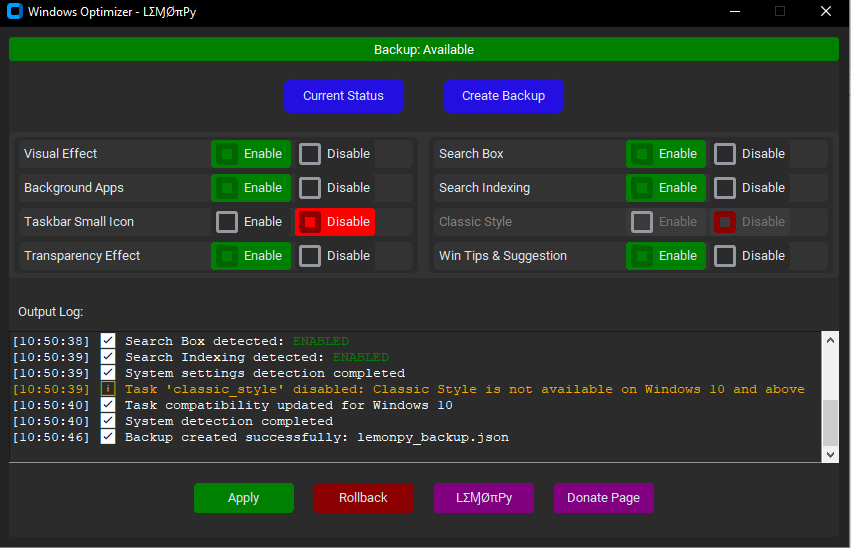
✨ Windows Optimizer
One-click startup optimization:
- ✅ Optimize Services – Sets 100+ non-essential services to Manual startup (safe and tested)
- ✅ Restore Defaults – Revert services to Windows default if needed
- ✅ Startup program viewer – See and disable startup programs easily
- ✅ Telemetry disabling – Stop background data collection
- ✅ Backup & Restore – Automatic restore points before changes
- ✅ Safe for beginners – Built-in safety checks prevent critical errors
Plus, it also disables visual effects and background apps for even better performance.
Bonus: Windows Maintenance Tool Also Includes Startup Optimization
Our all-in-one Windows Maintenance Tool V3 GUI also includes startup management features, plus junk file cleanup and system repairs.
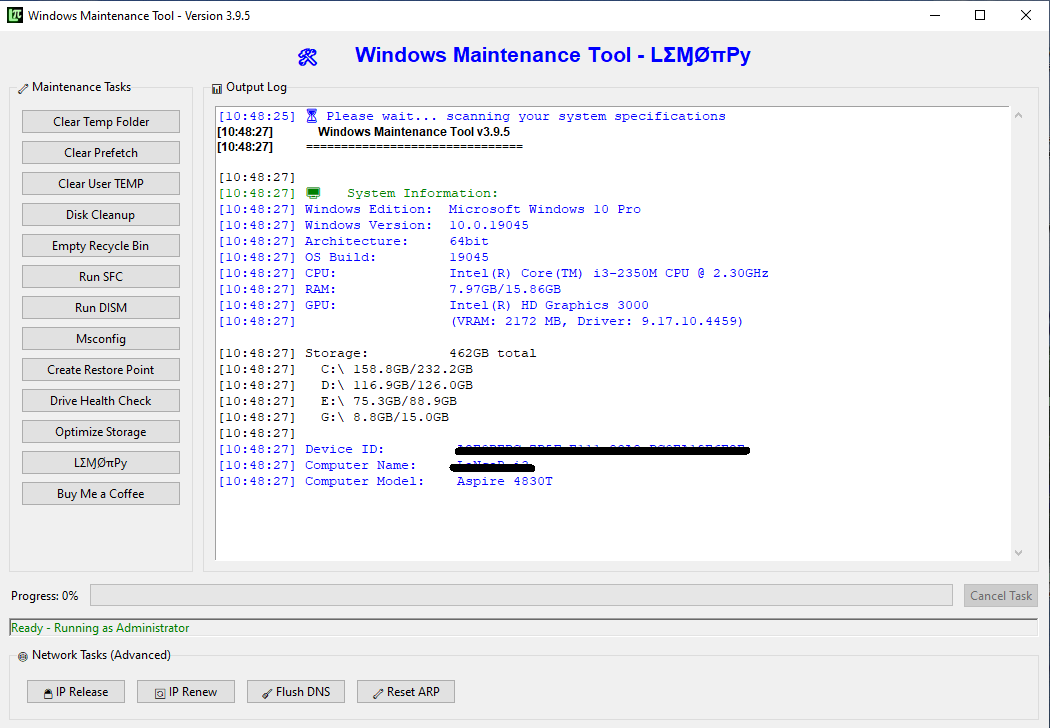
⚡ Windows Maintenance Tool V3 GUI
- ✅ Startup manager – View and disable startup programs
- ✅ Junk file cleaner – Remove temp files automatically
- ✅ DISM & SFC repair – Fix system file corruption
- ✅ Storage optimization – Free up disk space
Advanced: Check Scheduled Tasks for Hidden Startup Items
Some programs hide their startup entries in Task Scheduler. To check:
- Press Windows Key + R, type
taskschd.msc, press Enter. - Browse through the task library, especially under:
Task Scheduler Library\Microsoft\WindowsTask Scheduler Library\(third-party folders)
- Look for tasks set to run "At logon" or "At startup".
- Right-click and disable any you don't need.
Caution: Be careful in Task Scheduler – some tasks are critical for Windows. Only disable tasks you recognize as belonging to third-party software.
Frequently Asked Questions
Download Free Tools
| Tool | Best For | Download |
|---|---|---|
| Windows Optimizer | One-click startup & service optimization | Download → |
| Windows Maintenance Tool V3 GUI | All-in-one optimization + junk cleanup | Download → |
| Windows Debloater | Remove bloatware & protect privacy | Download → |
Faster Boot Times Are Just a Few Clicks Away
Whether you prefer manual methods or one-click tools, disabling unnecessary startup programs is one of the most effective ways to speed up your PC.
- ✅ Manual methods – Task Manager, MSConfig, Settings
- ✅ Easy way – Windows Optimizer does it all automatically
- ✅ Bonus – Maintenance Tool adds junk cleanup and repairs
Try it today – your faster-booting PC is waiting!