
How to Clean Junk Files Automatically with Free Tools (2026)
Are you still cleaning temporary files manually? There's a better way!
Every time you use your computer, Windows creates temporary files – browser cache, update leftovers, log files, and more. Over weeks and months, these junk files can accumulate to tens of gigabytes, slowing down your PC and wasting valuable disk space.
In this guide, we'll show you how to automate junk file cleanup using free tools – so you never have to remember to clean them manually again.
Quick Answer:
- ✅ Manual cleaning is tedious and easy to forget.
- ✅ Windows Maintenance Tool V3 GUI automates everything with one click.
- ✅ Plus – it also runs DISM, SFC, and optimizes storage!
The Problem: Junk Files Accumulate Silently
Here's what's piling up on your PC right now:
Temp Files
Windows and apps create temporary files that never get deleted.
Browser Cache
Chrome, Edge, Firefox store cached data that can reach GBs.
Update Leftovers
Windows Update leaves behind old files after installing updates.
Log Files
System and app logs grow over time without you noticing.
All these files take up space and can slow down your system – especially if you have a smaller SSD or HDD.
Manual Cleaning vs Automatic Cleaning
| Aspect | Manual Cleaning | Automatic (Our Tool) |
|---|---|---|
| Time required | 5-10 minutes each time | 1 click, 30 seconds |
| Frequency | Easy to forget | Can be run anytime |
| Risk of deleting wrong files | High (especially for beginners) | Built-in safety checks |
| Cleans Temp folders | Yes | Yes |
| Cleans Browser cache | Have to do each browser separately | Yes, all at once |
| Runs DISM & SFC | Separate commands | Built-in |
| Storage optimization | Manual only | Yes |
The Solution: Windows Maintenance Tool V3 GUI
Our flagship tool, Windows Maintenance Tool V3 GUI, automates all your junk file cleaning tasks with a simple, user-friendly interface. No command line knowledge required – just click and let it work!
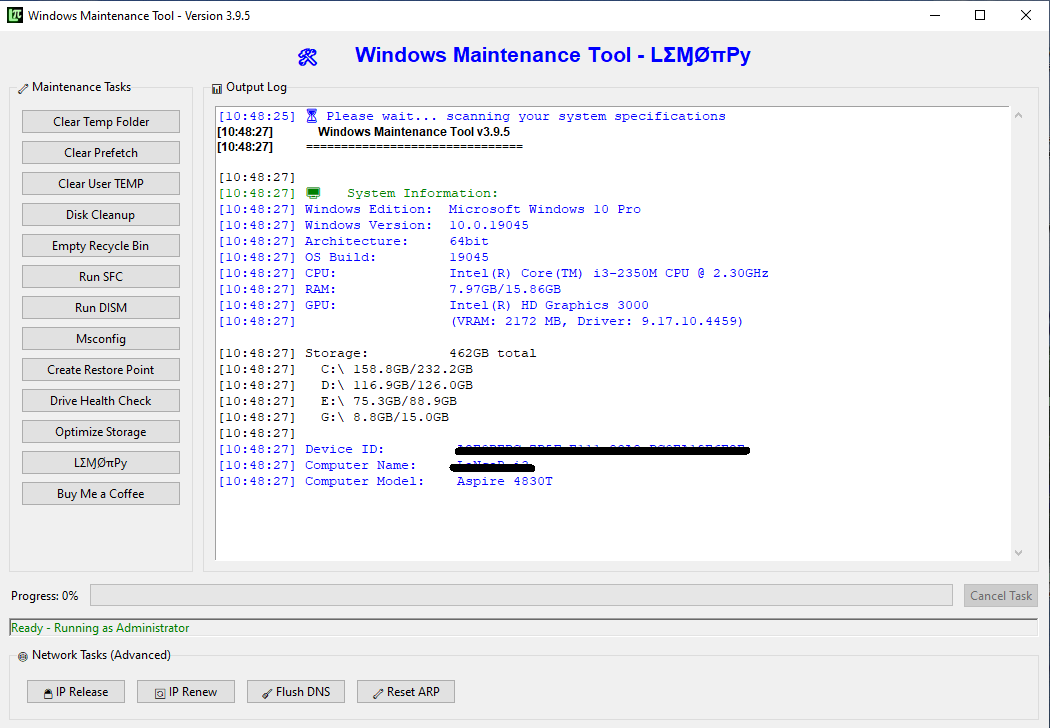
⚡ Windows Maintenance Tool V3 GUI
This powerful yet easy-to-use tool does everything automatically:
- ✅ One-click cleanup – cleans Temp, %temp%, prefetch, and cache folders
- ✅ Browser cache cleaner – supports Chrome, Edge, Firefox, Brave, Opera
- ✅ DISM and SFC – repairs system files automatically
- ✅ Storage optimization – removes junk safely
- ✅ Progress bars – see exactly what's being cleaned
- ✅ Backup & Restore – undo if needed
Why choose our GUI version? Because you deserve a tool that's powerful AND easy to use. No typing commands, no remembering syntax – just click and go!
How to Use Windows Maintenance Tool (Step by Step)
Step 1: Download and Extract
Download the tool from the link above. If you downloaded the portable version, extract the .rar file to a folder of your choice.
Step 2: Run as Administrator
Right-click the executable and select "Run as administrator". (The tool will prompt you if you forget – but it's best to do it manually.)
Step 3: Click "Clean Junk Files"
In the main interface, you'll see a button for junk file cleanup. Click it, and watch the progress bars fill up!
Pro tip: You can also select specific items to clean in the "Advanced Cleanup" section. For most users, the default settings work perfectly.
Step 4: Run DISM and SFC (Optional)
For a deeper clean, use the built-in DISM and SFC tools to repair system files. These are also one-click operations.
Bonus Tips for Automatic Junk File Management
1. Schedule Automatic Cleanup with Task Scheduler
You can set Windows to run the Maintenance Tool automatically every week:
- Open Task Scheduler from Start Menu.
- Create a Basic Task, set trigger to weekly.
- Action: Start a program – browse to the Maintenance Tool executable.
- Add arguments if needed (check the tool's manual).
2. Combine with Windows Optimizer
For even better performance, use Windows Optimizer to disable visual effects and background services. This frees up RAM and CPU.
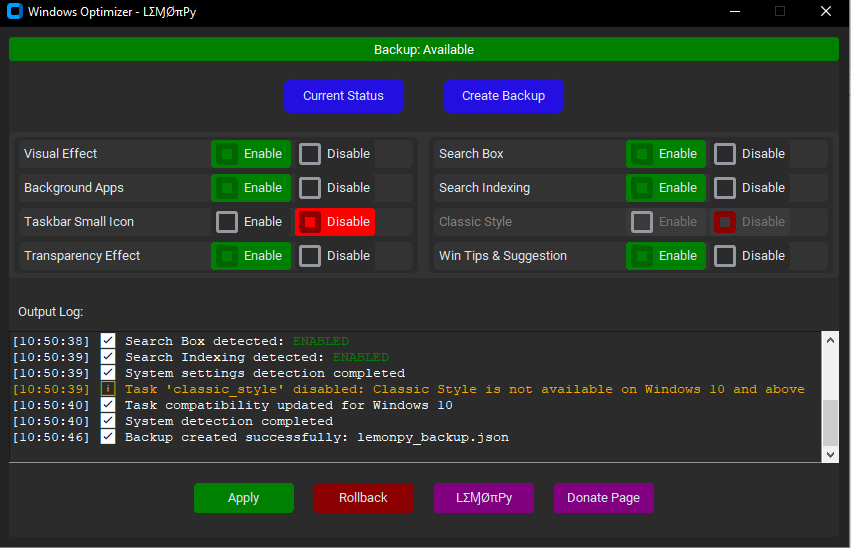
✨ Windows Optimizer
Disable visual effects, telemetry, and background services with one click.
3. Remove Bloatware to Free Up More Space
Windows comes with many pre-installed apps you may never use. Removing them can free up disk space and reduce background processes.
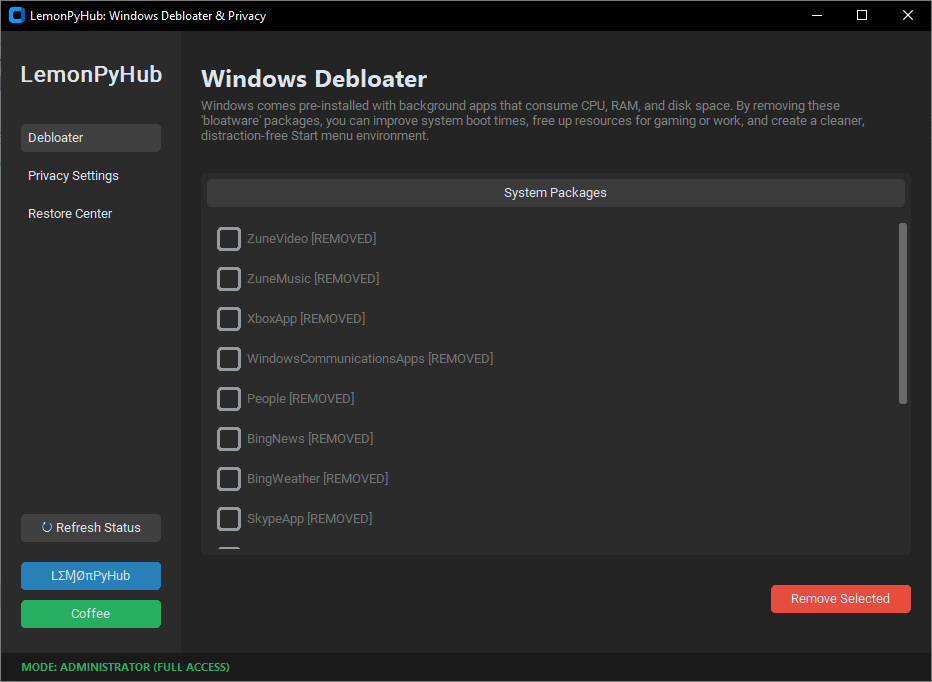
🧹 Windows Debloater & Privacy
One-click removal of bloatware and telemetry. Safe and reversible.
Frequently Asked Questions
Download All Free Tools
| Tool | Purpose | Download |
|---|---|---|
| Windows Maintenance Tool V3 GUI | Clean junk files, DISM/SFC, optimize storage | Download → |
| Windows Optimizer | Disable visual effects & background services | Download → |
| Windows Debloater | Remove bloatware & protect privacy | Download → |
Stop Cleaning Junk Files Manually – Automate It Today!
You have better things to do than hunt for temporary files. Let Windows Maintenance Tool V3 GUI handle it automatically, so you can focus on what matters.
- ✅ Save time – one click instead of 10 minutes of manual work
- ✅ Be thorough – cleans everything, not just the easy stuff
- ✅ Stay safe – built-in backups and safety checks
- ✅ It's free – no cost, no catches
Download it now and see how much junk has been hiding on your PC!