
5 Best Free Optimizers for Windows 11 Low-End PCs (2026)
If you have a low-end PC running Windows 11, you know the struggle: sluggish performance, high RAM usage, and apps that take forever to load.
The good news? You don't need to buy new hardware. The right optimizer tools can breathe new life into your old machine – and many of them are completely free.
We tested over a dozen free Windows 11 optimizers on low-end hardware (4GB-8GB RAM, older CPUs) to find the ones that actually work. Here are our top 5 picks for 2026.
Quick Overview:
- ✅ #1 Windows Maintenance Tool V3 GUI – Best all-around optimizer (our tool!)
- ✅ #2 Windows Optimizer – Best for disabling visual effects
- ✅ #3 Windows Debloater – Best for removing bloatware
- ✅ #4 ZyperWin++ – Lightweight (2MB) with 3 optimization modes
- ✅ #5 Project Ronin – Best for gaming & handhelds
Quick Comparison: Top 5 Optimizers
| Tool | Best For | Size | Open Source |
|---|---|---|---|
| Windows Maintenance Tool V3 GUI | All-around optimization + junk cleanup | ~11MB | ✅ Yes |
| Windows Optimizer | Visual effects & service tweaks | ~27MB | ✅ Yes |
| Windows Debloater | Bloatware removal & privacy | ~28MB | ✅ Yes |
| ZyperWin++ | Ultra-lightweight, 3 optimization modes | 2MB | ✅ Yes |
| Project Ronin | Gaming performance & handhelds | Script-based | ✅ Yes |
#1. Windows Maintenance Tool V3 GUI – Best All-Around Optimizer
Our flagship tool takes the top spot because it combines everything you need in one package: junk file cleanup, system repairs (DISM/SFC), storage optimization, and more – all with a beautiful, user-friendly interface.
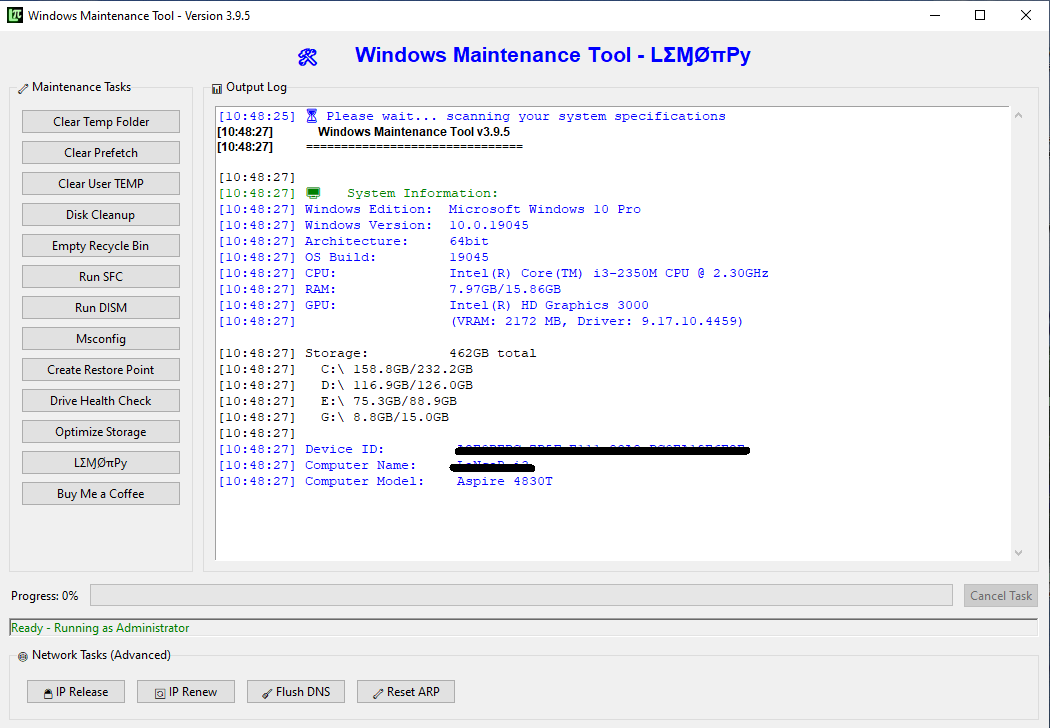
⚡ Windows Maintenance Tool V3 GUI
Why it's #1: Unlike other tools that only do one thing, this tool is a complete system optimization suite.
- ✅ One-click junk cleaner – Temp files, cache, browser data
- ✅ DISM & SFC repair – Fix corrupted system files
- ✅ Storage optimization – Free up disk space safely
- ✅ Progress bars – See exactly what's being cleaned
- ✅ Backup & Restore – Undo if needed
- ✅ GUI interface – No command line knowledge required
Perfect for beginners and advanced users alike. If you only download one tool from this list, make it this one.
#2. Windows Optimizer – Best for Visual Effects & Services
Windows 11's fancy animations and transparency effects look nice, but they consume precious RAM and CPU on low-end PCs. Windows Optimizer disables them all with one click.
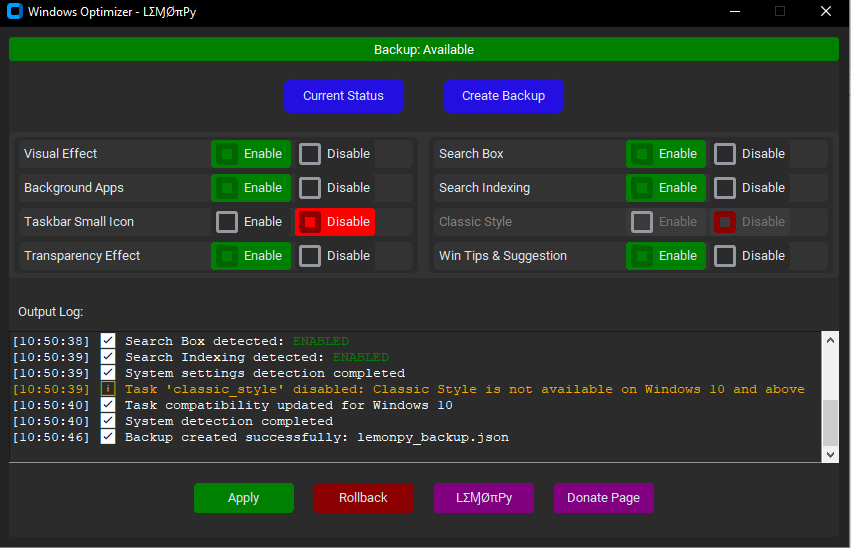
✨ Windows Optimizer
- ✅ Disable animations & transparency – Free up RAM instantly
- ✅ Turn off telemetry – Stop background data collection
- ✅ Stop unnecessary services – Reduce CPU usage
- ✅ Create backup settings – Rollback if needed
- ✅ Auto-detect Windows version – Works on Win7 to Win11
After running this tool, you'll notice your PC feels snappier immediately – especially on 4GB-8GB RAM systems.
#3. Windows Debloater & Privacy – Best for Removing Bloatware
Windows 11 comes with dozens of pre-installed apps you probably never use: Xbox, Teams, Skype, News, Weather, and more. These apps run in the background and consume valuable RAM. Windows Debloater removes them safely.
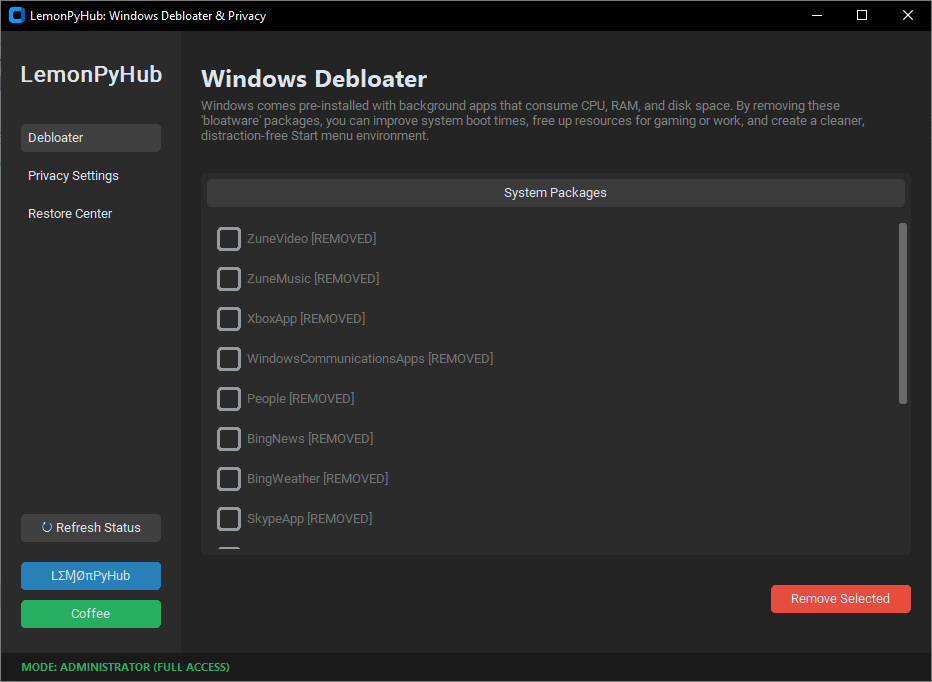
🧹 Windows Debloater & Privacy
- ✅ Bloatware removal – Uninstall pre-installed apps in bulk
- ✅ Telemetry disabling – Block Microsoft data collection
- ✅ Restore center – Reinstall apps if needed
- ✅ Free up 200-500MB RAM – Significant for 4GB systems
- ✅ Safe & reversible – No permanent changes
Pro tip: Combine this with Windows Maintenance Tool for maximum performance gain.
#4. ZyperWin++ – Ultra-Lightweight (2MB) with 3 Optimization Modes
If you want a tiny, no-nonsense optimizer, ZyperWin++ is your tool. At just 2MB, it's one of the smallest optimizers available, yet it packs powerful features [citation:2][citation:10].

⚡ ZyperWin++
Key Features: [citation:2][citation:10]
- ✅ 3 optimization modes – Basic, Deep, and Extreme
- ✅ Office installer – One-click Office installation
- ✅ System activation – Built-in HWID/KMS tools
- ✅ Appx management – Remove unwanted Windows apps
- ✅ Restore function – Revert to default settings
- ✅ Size: only 2MB! – Portable, no installation needed
Available on GitHub: ZyperWave/ZyperWinOptimize
#5. Project Ronin – Best for Gaming & Handhelds (ROG Ally, Legion Go)
If you use your low-end PC for gaming or have a handheld device like the ROG Ally, Project Ronin is specifically designed for you. It's a PowerShell-based optimizer that focuses on gaming performance and frame time stability [citation:4].
🎮 Project Ronin
Core Modules: [citation:4]
- ✅ Auto-Optimize – Safe, high-impact defaults
- ✅ Gaming & GPU – Latency fixes, MPO disable
- ✅ Handheld mode – Fixes for ROG Ally, Legion Go
- ✅ Privacy Shield – Disables telemetry & Copilot
- ✅ Non-destructive – Uses Group Policies, not deletions
- ✅ Restore points – Automatic backups
Run with one command (as admin): irm "https://raw.githubusercontent.com/keiretrogaming/Project-Ronin/main/run.ps1" | iex
Honorable Mentions (Also Worth Checking Out)
We couldn't fit everything in the top 5, but these tools are also excellent:
- Winhance – Open-source with WinUI 3 modern interface. Automatically creates restore points before applying tweaks [citation:1].
- Sparkle – All-in-one optimizer with debloat, cleaner, and DNS switching features [citation:6].
- WinOptimize 11 (Wibe Suite) – Python-based with real-time hardware monitoring and package manager [citation:5].
- Winslop – Lightweight with classic Windows 95 aesthetic [citation:8].
- Optimizer (hellzerg) – Powerful tool with 22 language support [citation:7].
Frequently Asked Questions
Download Summary
| Tool | Best For | Download |
|---|---|---|
| Windows Maintenance Tool V3 GUI | All-around optimization | Download → |
| Windows Optimizer | Visual effects & services | Download → |
| Windows Debloater | Bloatware removal | Download → |
| ZyperWin++ | Ultra-lightweight (2MB) | GitHub → |
| Project Ronin | Gaming & handhelds | GitHub → |
Final Verdict: Which Optimizer Should You Choose?
After testing dozens of tools, here's our recommendation based on your needs:
- For most users: Start with Windows Maintenance Tool V3 GUI – it's the complete package.
- If your PC feels sluggish after boot: Add Windows Optimizer to disable visual effects.
- If you have lots of pre-installed apps: Run Windows Debloater to remove them.
- If you're a gamer: Check out Project Ronin for gaming-specific tweaks.
- If you want something tiny: ZyperWin++ at 2MB is unbeatable.
Remember: all these tools are free. Try them out and see which one works best for your system!